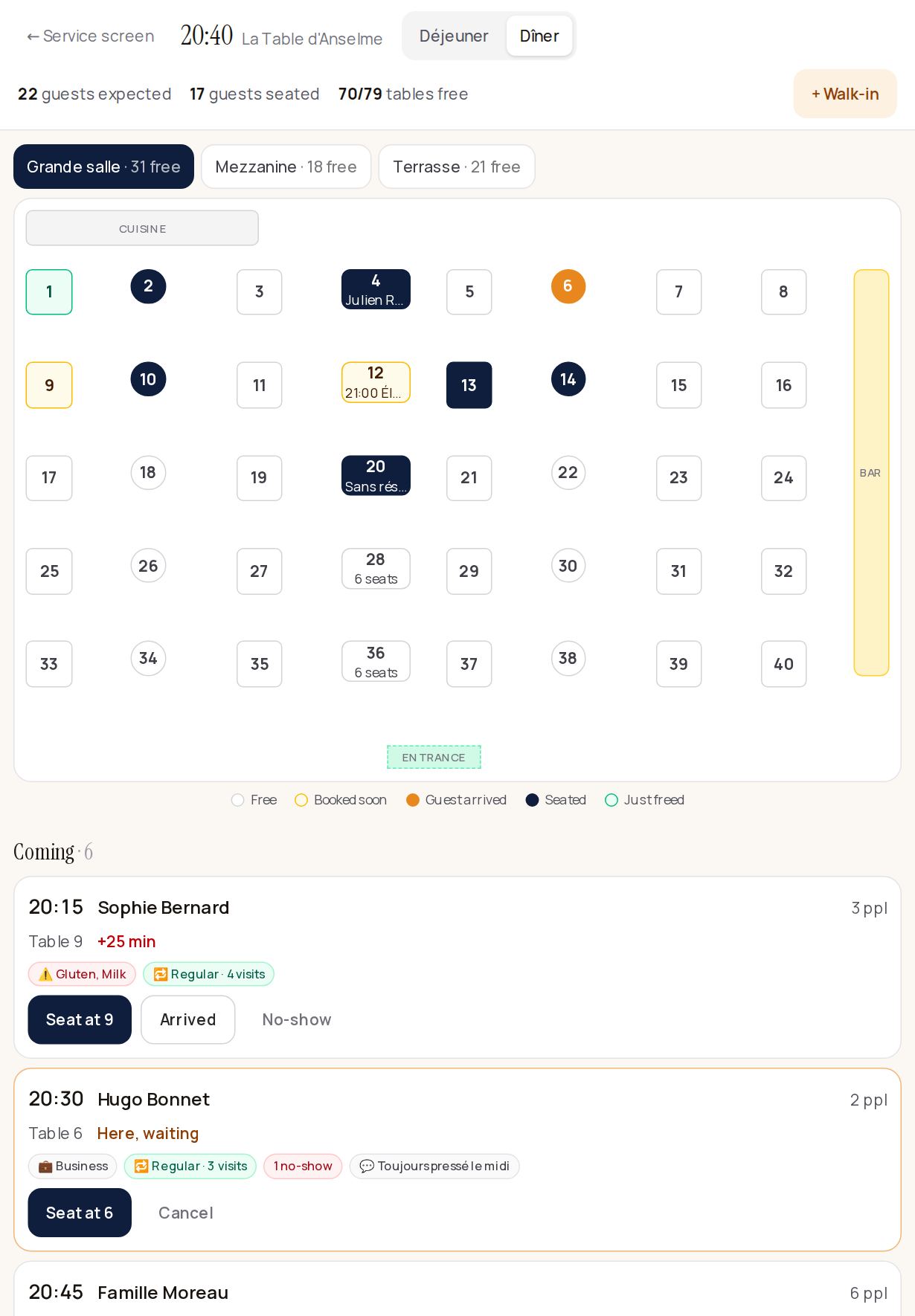
On the service screen, tap Host mode. Klarr opens the current service, picked by the time of day, full screen: the floor plan on the left, the guest list on the right. On an iPad held upright, the list moves below the plan.
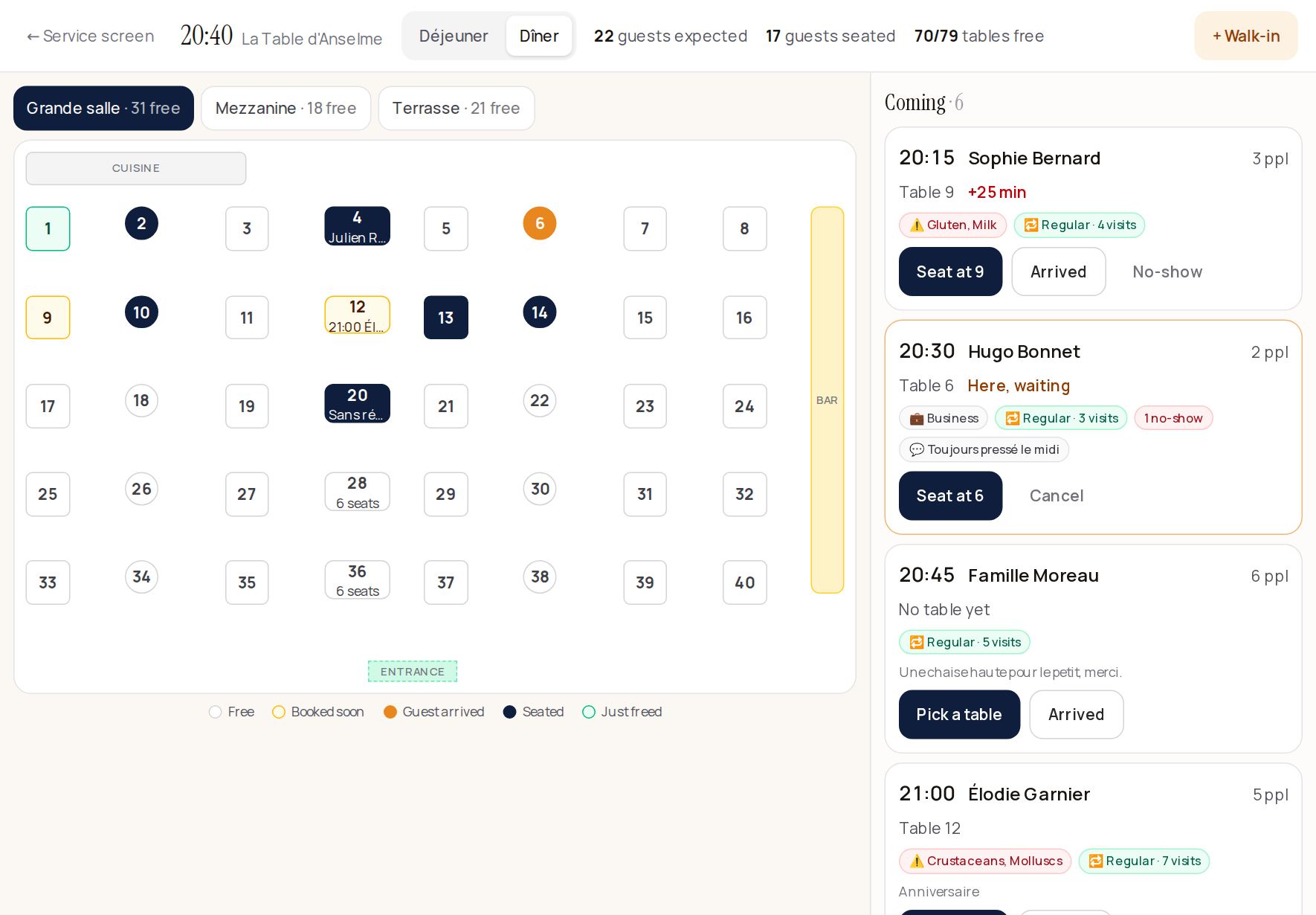
The colours on the plan
- White: the table is free. If someone is expected later, their time shows ("→ 21:30").
- Yellow: booked within the next half hour.
- Orange: the guest has arrived and is waiting for the table.
- Dark blue: seated, with the time spent so far.
- Green: the table has just been freed (less than a quarter of an hour ago).
On a small table only the number shows: tap it to see everything.
Greeting a guest
In Coming, each guest has their time, number of guests, table and the summary of their profile (allergies, regular, birthday…).
- Seat at 9: the guest already has a table and sits down.
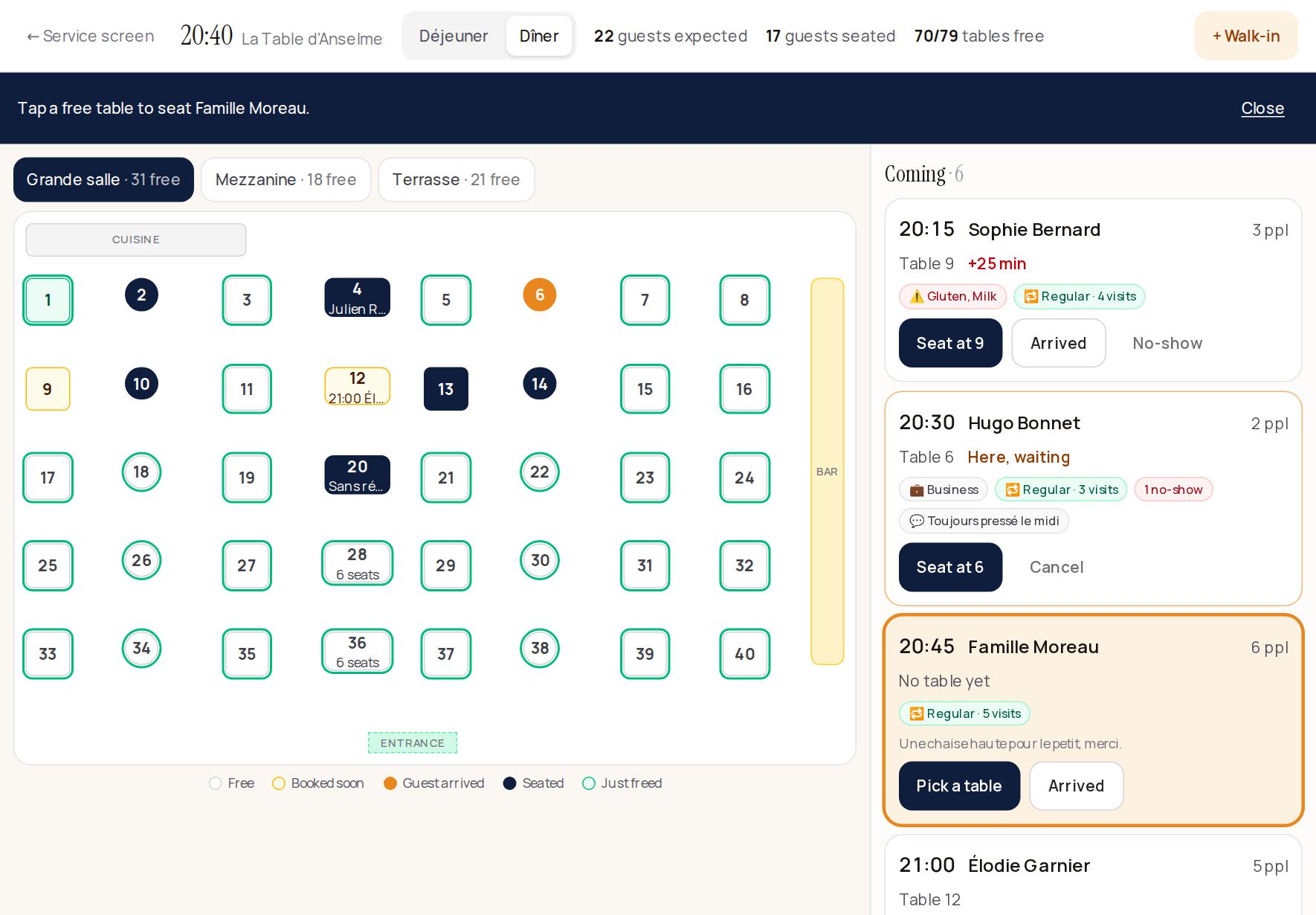
- Pick a table: no table yet. Tap the guest, then tap a free table on the plan.
- Arrived: they're here but the table isn't ready. It turns orange.
- No-show: appears once the guest is a quarter of an hour late.
Freeing a table
When a party leaves, tap Free under Seated, or tap their table on the plan. The table turns green: it's ready for the next guests, even before the planned time.
A tap made by mistake is undone with Cancel: left goes back to seated, seated goes back to arrived.
A walk-in
Tap + Walk-in, then a free table (or tap the table directly). Enter the number of people, a name if you like, then Seat here.
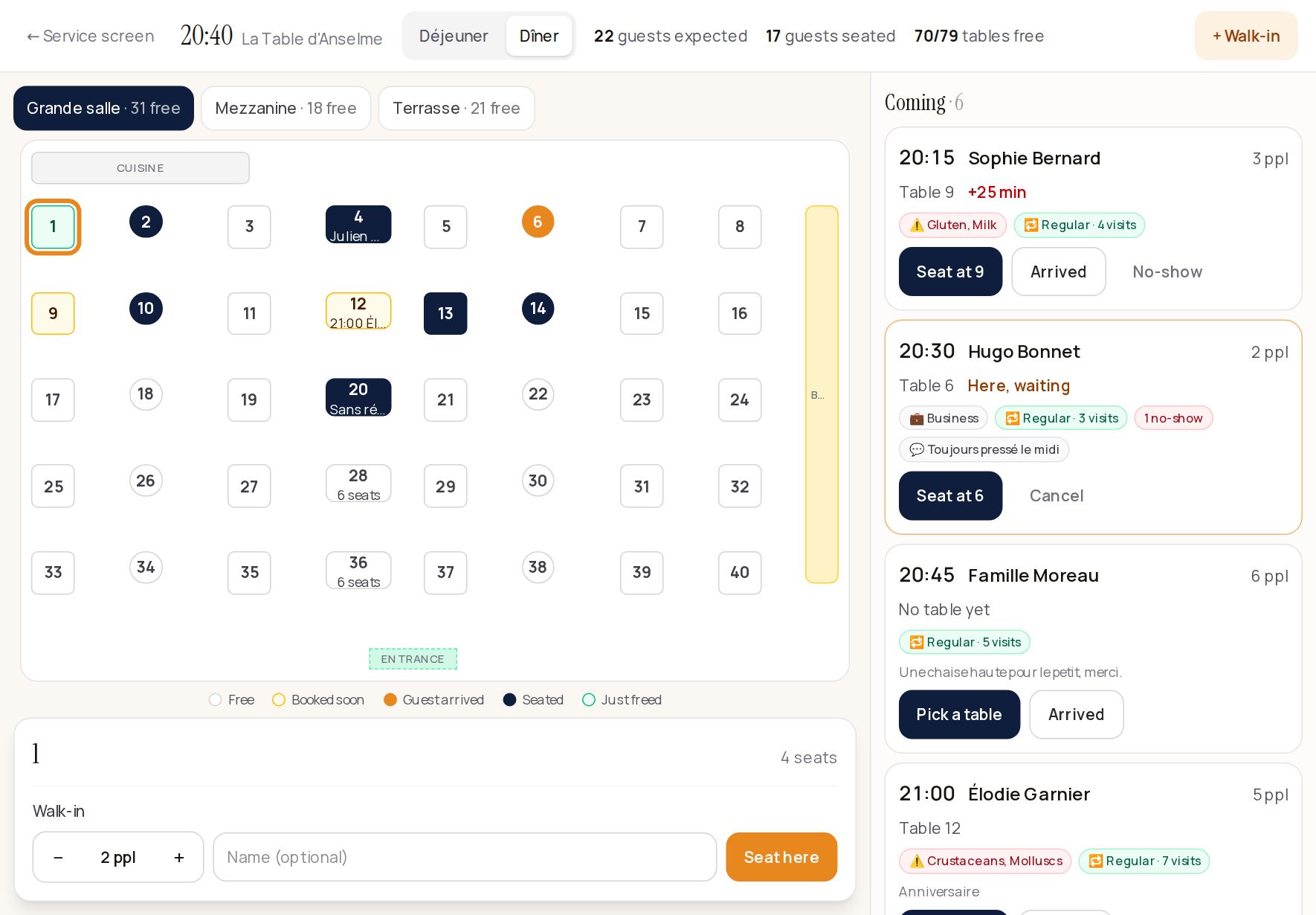
If the table is promised to a booking within the usual length of a meal, Klarr warns you and lets you decide: Seat them anyway.
A walk-in counts in your covers, but not in your booking statistics. Since there's no email address, they don't receive anything.
Who can use it
The whole team, waiters included, can greet, seat and free tables. Moving a guest to another table follows the rules on your Team screen: if a manager code is required, Klarr asks for it.
The screen refreshes on its own every twenty seconds, to keep up with phone bookings and tables seated from the app.