Klarr counts your bookings by itself and shows you what's working: how many guests you've had, which days are strongest, where your bookings come from, and how many tables were left empty. There's nothing to fill in: you just look.
Where to find your figures
- In the left-hand menu, click Bookings.
- Scroll right to the bottom of the page: the section is called Statistics.
- At the top right, choose the period: 30 d (the last month), 90 d (the last three months) or 1 year.
The statistics look at the past: days already gone, today included. What's coming up is just above, in the Calendar.
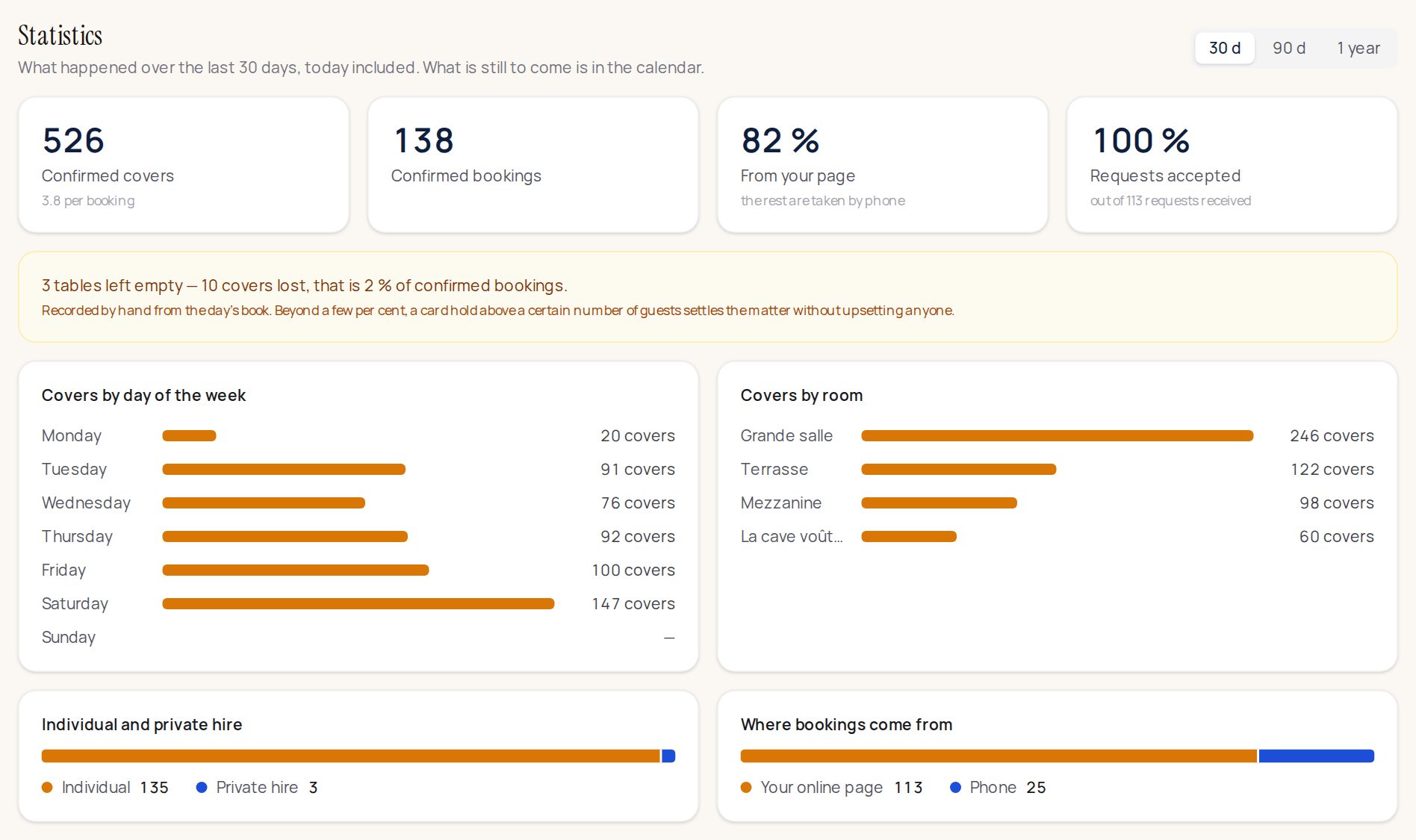
The four figures at the top
- Confirmed covers: the number of people you received (or were due to receive) over the period. Just below, the average table size: “3.8 per booking”.
- Confirmed bookings: the number of tables booked, whatever the number of people.
- From your page: the share of bookings made by guests themselves, on your booking page. The rest were entered by you or your team (by phone, at the counter). The higher this figure, the less time you spend on the phone.
- Requests accepted: out of all the requests received online, how many you accepted. A low figure often means your capacity is set too low, or your notice period is too long (see Creating your restaurant).
Tables left empty
If guests didn't turn up, an orange box says so: how many tables, how many covers lost, and what share of your bookings that represents.
This figure only counts the no-shows you recorded yourself (the no-show button on the booking). If it goes above a few per cent, ask for a card hold above a certain number of guests: see Asking for a card hold.
If there were no no-shows, the box doesn't appear.
The charts
- Covers by day of the week: your busy days and your quiet days. A weak day is a good candidate for an offer or an event; Klarr suggests some in “Klarr has prepared” when a service stays quiet.
- Covers by room: which room works hardest. A room that never fills up can be used for something else (private hire, an experience).
- Individual and private hire: the share of ordinary tables and of parties that hired a room.
- Where bookings come from: your online page (orange) or the phone (blue).
Hover your mouse (or your finger) over a bar to see the detail: the number of bookings and covers.
The calendar, for what's coming
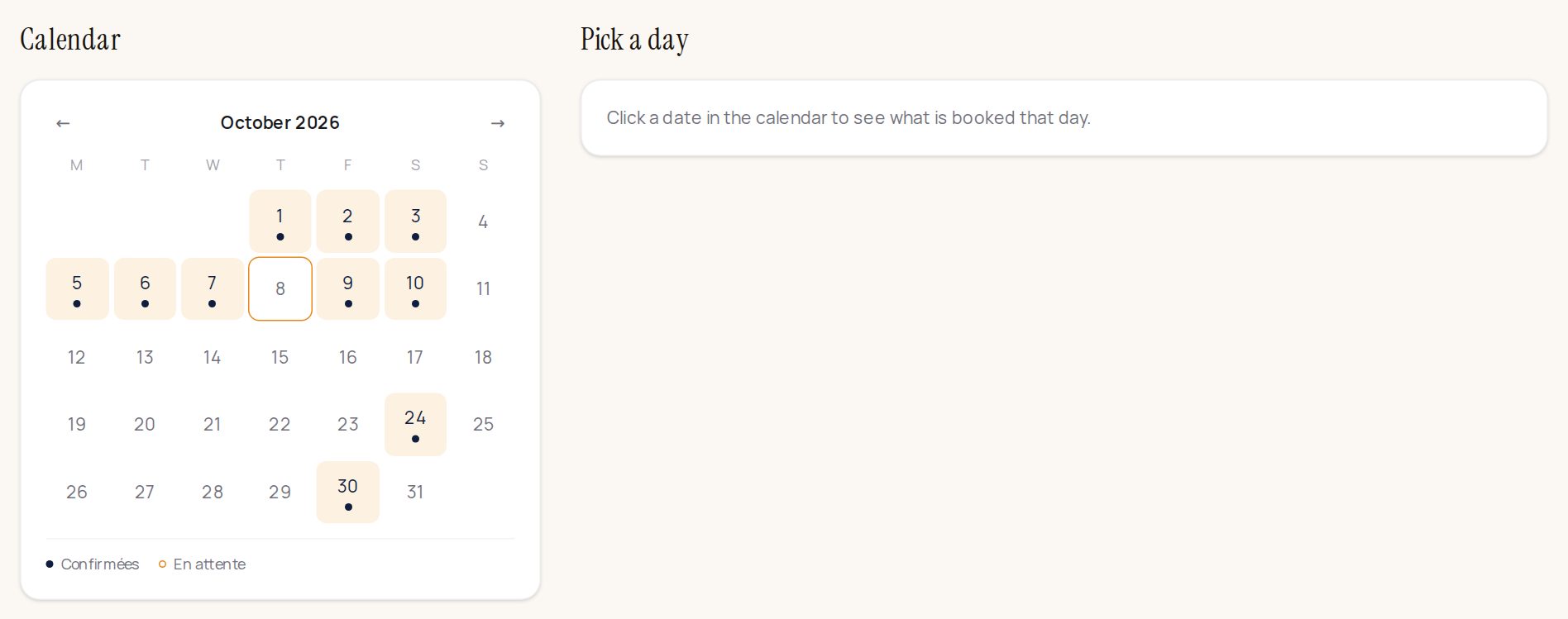
Just above the statistics, the Calendar shows the month. A dark dot under a date means there are confirmed bookings that day, an orange circle that requests are pending. Click a date to see who's coming.
Keeping the figures accurate
Bookings taken by phone only count if you enter them in Klarr (the add-a-booking button, or the + in the iPhone app). If your figures look too low, that's almost always the place to start.
Remember to record no-shows too: without that, Klarr can't tell you how many tables are left empty.