A stamp card, with no paper card to print and no app for the guest to download. They get it in ten seconds from a QR code, keep it on their phone, and come back for their reward.
Setting it up
In Loyalty card:
- tick "Offer the loyalty card";
- choose the number of stamps for a reward (between 3 and 20);
- write the reward: "A free dessert", "A coffee and sweets", "The lunch menu"…;
- choose the card colour.
The sign-up page uses the address of your booking page, so it needs to exist.
Getting the word out
On the same screen you have the QR code of the sign-up page and its link. Print the QR code for the counter or the tables, and paste the link in your Instagram bio. The link also appears automatically on your booking page, under the restaurant's name.
For the guest
The guest scans the QR code, gives their name and email (phone is optional), and their card opens right away. They also receive it by email. On the card there are two buttons: "Add to Apple Wallet" and "Add to Google Wallet". After that, it updates by itself with each stamp.
An email address that is already registered does not show the card on screen: Klarr sends the link again to that address. Nobody can see someone else's card by typing their email.
Stamps
Three ways, and you can mix them:
- Automatically, after a booking. The day after a confirmed booking (with no no-show recorded), the guest gets a stamp if they have a card with the same email address.
- Automatically, with a takeaway order. When you mark the order "Handed over".
- By scanning the card. In the Klarr app, More tab, then Loyalty card: point at the card's QR code, then "+1 stamp". The whole team can do it, Staff role included.
You can also add a stamp from the Loyalty card screen on the website, with "+1 stamp" next to the guest's name.
The same visit never gives two automatic stamps. If you scan the card of a guest who has already had their automatic stamp, check the counter before stamping.
The reward
At the last stamp, the card starts again from zero and a reward is waiting. The guest sees it on their card (and Google Wallet notifies them). When you give it, tap "Reward handed over", in the app after the scan or on the website.
Sending a message on the card
In Loyalty card, under Messages on the card: write your message (140 characters max), choose who gets it — all cards, regulars (3 stamps or more) or guests not seen for 30 days — then Right now or Later (day and time).
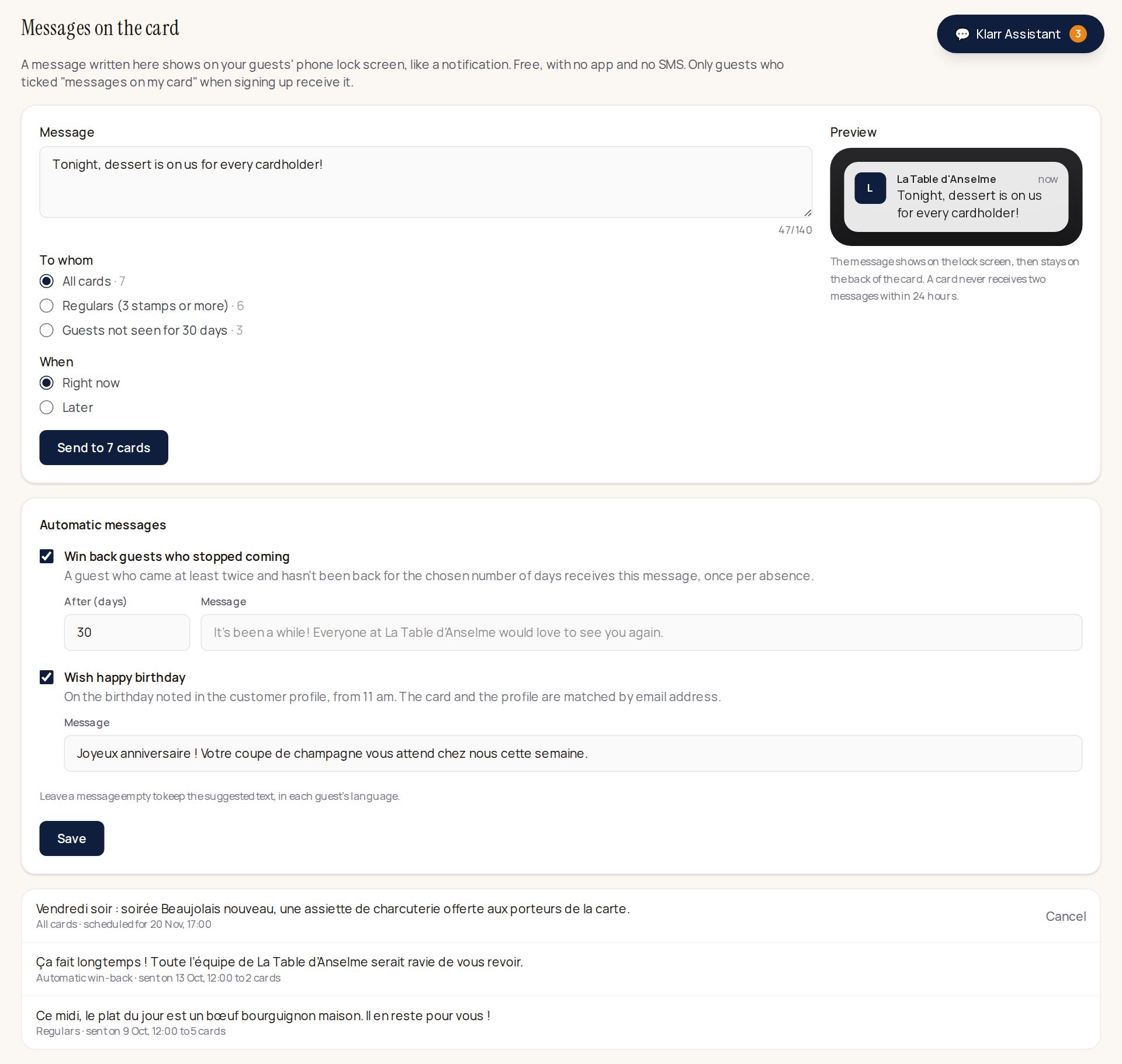
The message shows on the phone's lock screen, like a notification, then stays on the back of the card. It's free: no SMS, no app.
Two rules, always:
- only guests who ticked "I agree to receive messages on my card" when signing up receive it;
- a card never receives two messages within 24 hours.
A scheduled message can be cancelled until it goes out.
At sign-up, email is a separate box: "I'd also like to receive news by email". When ticked, the address goes into your customer list with their consent, and the guest receives your email campaigns; they can unsubscribe at any time. Nothing goes out by email without this box.
Automatic messages
Two messages you switch on once, which then go out on their own, from 11 am:
- Win back guests who stopped coming: a guest who came at least twice and hasn't been back for the chosen number of days (30 by default) receives your message. Once per absence: the next one waits until they come back, then disappear again.
- Wish happy birthday: on the birthday noted in their customer profile. The card and the profile are matched by email address.
Leave the text empty to keep the one Klarr suggests, in each guest's language. What went out shows under the settings, with the number of cards reached.
Deleting a card
If a guest asks, "Delete card" erases it along with its history. The guest can also remove it from their Wallet themselves.