Your guests order on a page in your name, pay online, and collect their order at the time they chose. The money arrives in your Stripe account, with no Klarr commission: only Stripe's fees apply.
It is included in the Bookings module. Stripe must be connected, except for table orders paid at the till (see below).
Preparing your menu
In Menu, each dish has an "Ordering" panel:
- Sold for takeaway: untick it for a dish served in the restaurant only.
- Options: up to four groups, for example "Sauce" (one choice, required) or "Extras" (several choices). One choice per line, with the extra charge at the end: "Egg +1".
Out of a dish? The "Sold out" button removes it from orders until the next day. It comes back on its own.
The allergens you tick on a dish also appear on the order page, under the dish, before the guest pays: the law requires it for distance selling. A dish with no declared allergens shows nothing, so tick them all.
Setting up orders
In Dine-in & takeaway orders, then Settings:
- tick "Accept takeaway orders";
- choose the preparation time (the earliest pick-up after the order);
- if you like, a maximum number of orders per quarter hour: a full slot is no longer offered.
Pick-up hours are your opening hours, exceptional closures included. Guests can order for today or tomorrow.
As soon as orders are open, an "Order for pickup" button appears on its own on your showcase site, your online menu and your booking page. Also copy the address of your ordering page and put it on your Google listing ("Order" link), your social media and your QR codes.
For the guest
The guest chooses dishes and options, the pick-up time, gives their name, phone and email, then pays by card. There is no order without payment.
They receive an email with their order number, and a tracking page with a QR code to show at the counter. The page is in French, English or Chinese, depending on their language.
During service
Each paid order alerts you on your phone and by email. The Dine-in & takeaway orders screen sorts them into three columns:
- New: tap "Start" when you begin it, or "Ready" straight away;
- Being prepared: tap "Ready" — the guest gets an email;
- Ready: tap "Handed to the guest" when they leave with it.
The screen updates on its own. "Print slip" gives an order slip for the kitchen.
Printing slips with AirPrint
No app to install, no cable: the iPhone, iPad or computer and the printer are on the same Wi-Fi.
- On the order, tap "Print slip".
- The print window opens on its own (on iPhone and iPad, it is Apple's, AirPrint).
- Choose your printer and tap "Print".
The slip is made for an 80 mm receipt printer: big order number, pickup time, dishes, options and the guest's note, with nothing else around it. An office printer works too, on an A4 sheet.
When choosing a receipt printer, check that the product page mentions AirPrint and 80 mm paper. Without AirPrint, iPhone and iPad won't see it.
You tap "Print" for each order: printing does not start on its own.
The guest's QR code
At the counter, scan the guest's QR code with your phone's camera: the order opens in Klarr, with a big "Handed to the guest" button. If it has already been handed over, cancelled or not paid, Klarr tells you in red: it never leaves twice.
Ordering at the table
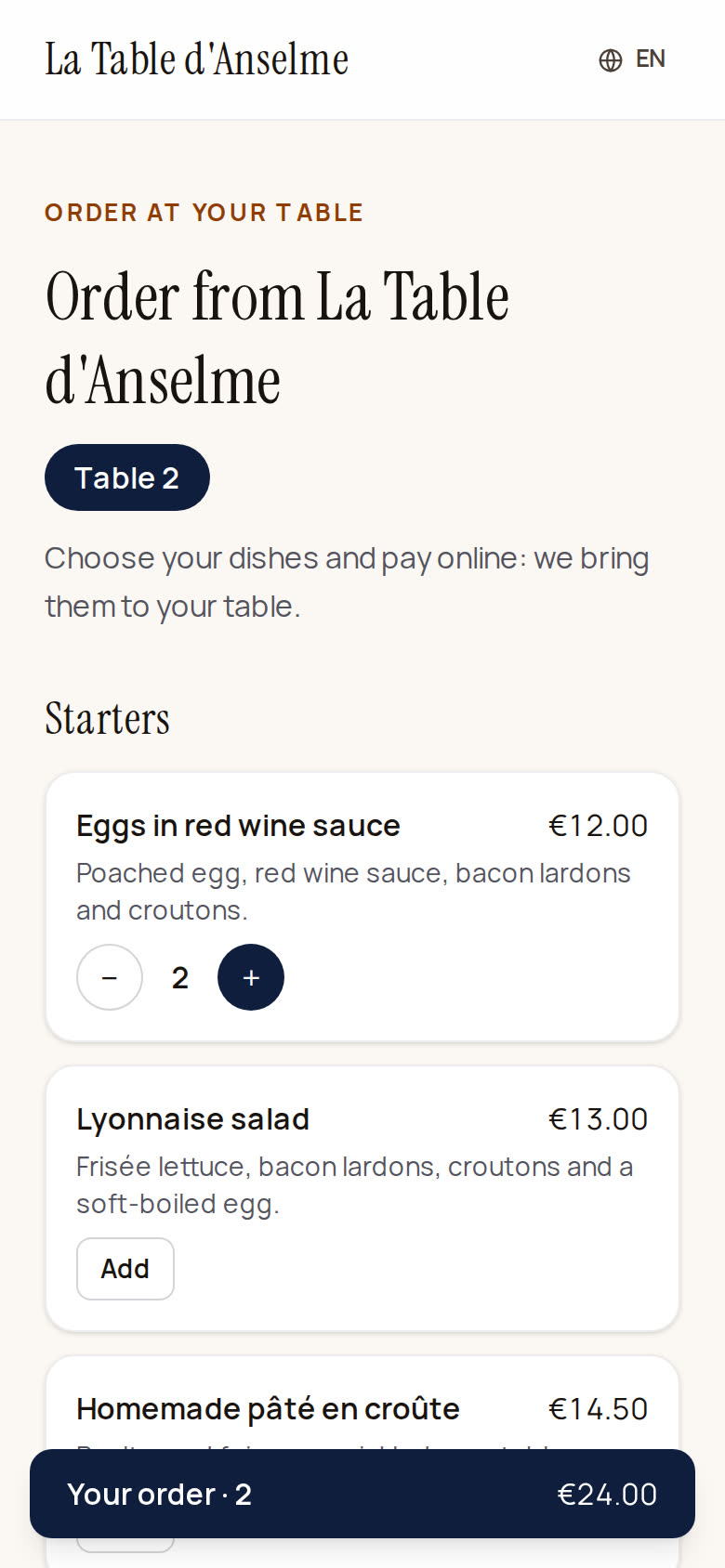
The same system works in the dining room: guests scan the QR code on their table, choose their dishes, pay straight away online, and you bring it over. No pick-up time or phone number to give: a first name (optional) and an email for the confirmation.
- In Dine-in & takeaway orders, then Settings, tick "Accept table orders". It is separate from takeaway: you can offer one, the other, or both.
- Tap "Table QR codes": Klarr prepares one card per table in your floor plan, four per A4 sheet, in French, English and Chinese. Print, cut out and put them on the tables.
Good to know:
- Table orders are only taken during your opening hours, and never during a pause or a closure.
- A dish with "Sold for takeaway" unticked is still offered at the table.
- The order arrives on the same screen with a "Table 2" badge. "Ready" sends no email (you bring it over), then "Served" files it away. The order slip shows the table number in large print.
- The QR code points to the table itself: renaming a table keeps its QR code, but a table deleted and created again needs a new one.
The kitchen screen
Put a tablet at the pass or the bar and open Dine-in & takeaway orders → Kitchen screen. Paid orders show up as large tickets, sorted by urgency:
- the header is green, then orange five minutes before the target time, then red once late. At the table, the target is payment time plus your preparation time; for takeaway, the pick-up time;
- a takeaway order only appears two hours before pick-up;
- "Start" moves it into preparation, "Ready" finishes it (for takeaway, the guest gets the "it's ready" email);
- at the bottom, "Ready to send out" tells the floor what to bring;
- tap "Turn sound on" once: the tablet beeps for every new order.
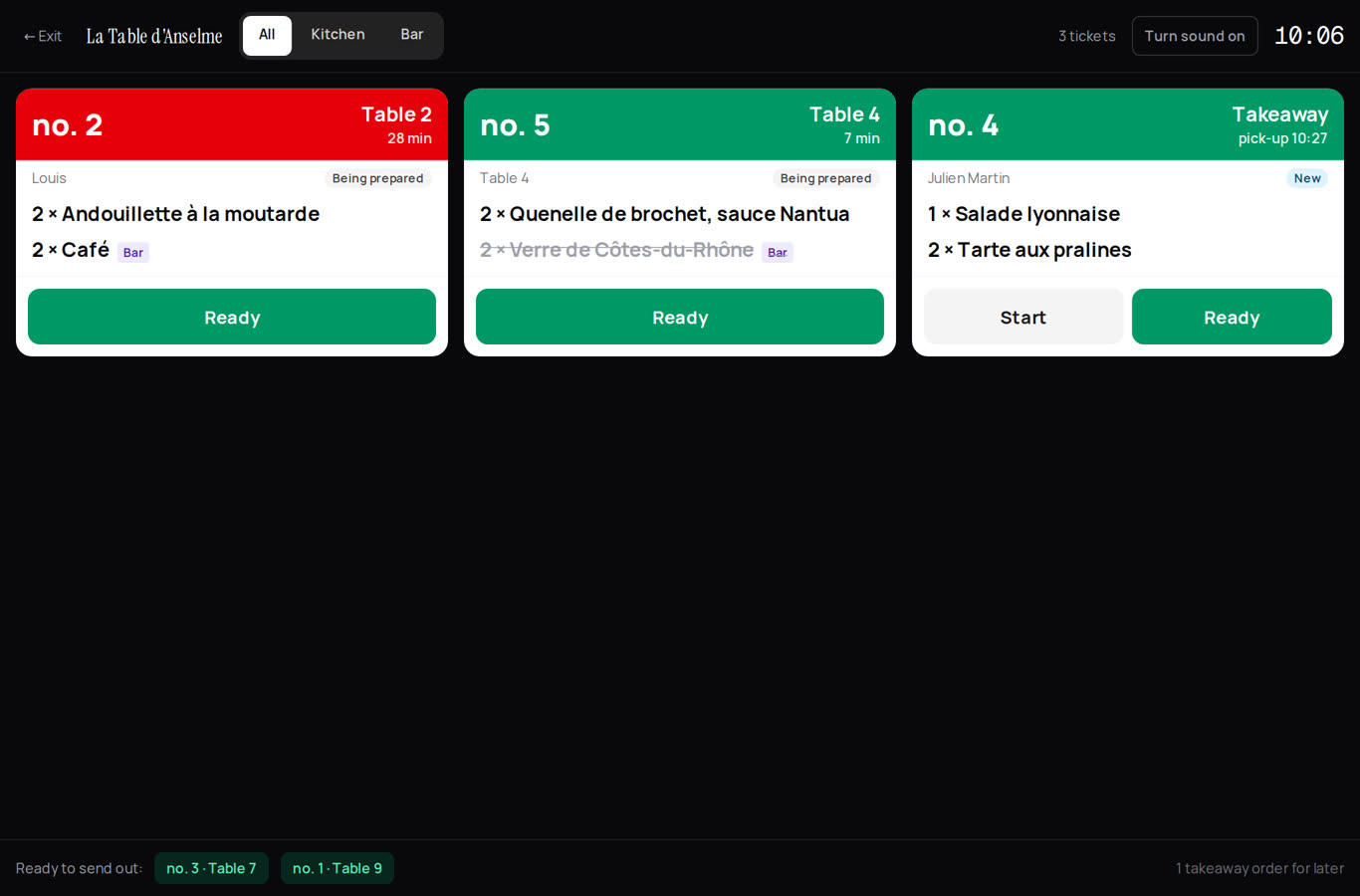
Kitchen and bar. In Settings, tick "What goes to the bar" (Drinks, Coffees…). The screen then offers All / Kitchen / Bar: each station only sees its own dishes and taps "Ready" for its part. The order becomes ready when all its stations have finished. Nothing ticked: one screen for the whole order.
The Floor screen, for waiters
Waiters open Service screen → Floor: table orders, on a tablet or their phone. The Service role has access: no need to be a manager.
The floor plan shows every table that ordered by QR code:
- green: an order is ready in the kitchen, to take out;
- orange: it is being prepared;
- purple: served in order, the next course is waiting for the waiter (see below);
- light blue: everything has been served. A table served more than two hours ago turns white again.
Tap a table to see who ordered what, the time, the guest's note ("no onions") and what was paid online, order by order. "Served" puts it away once the plate is on the table. The screen refreshes on its own; "Turn sound on" beeps as soon as an order is ready.
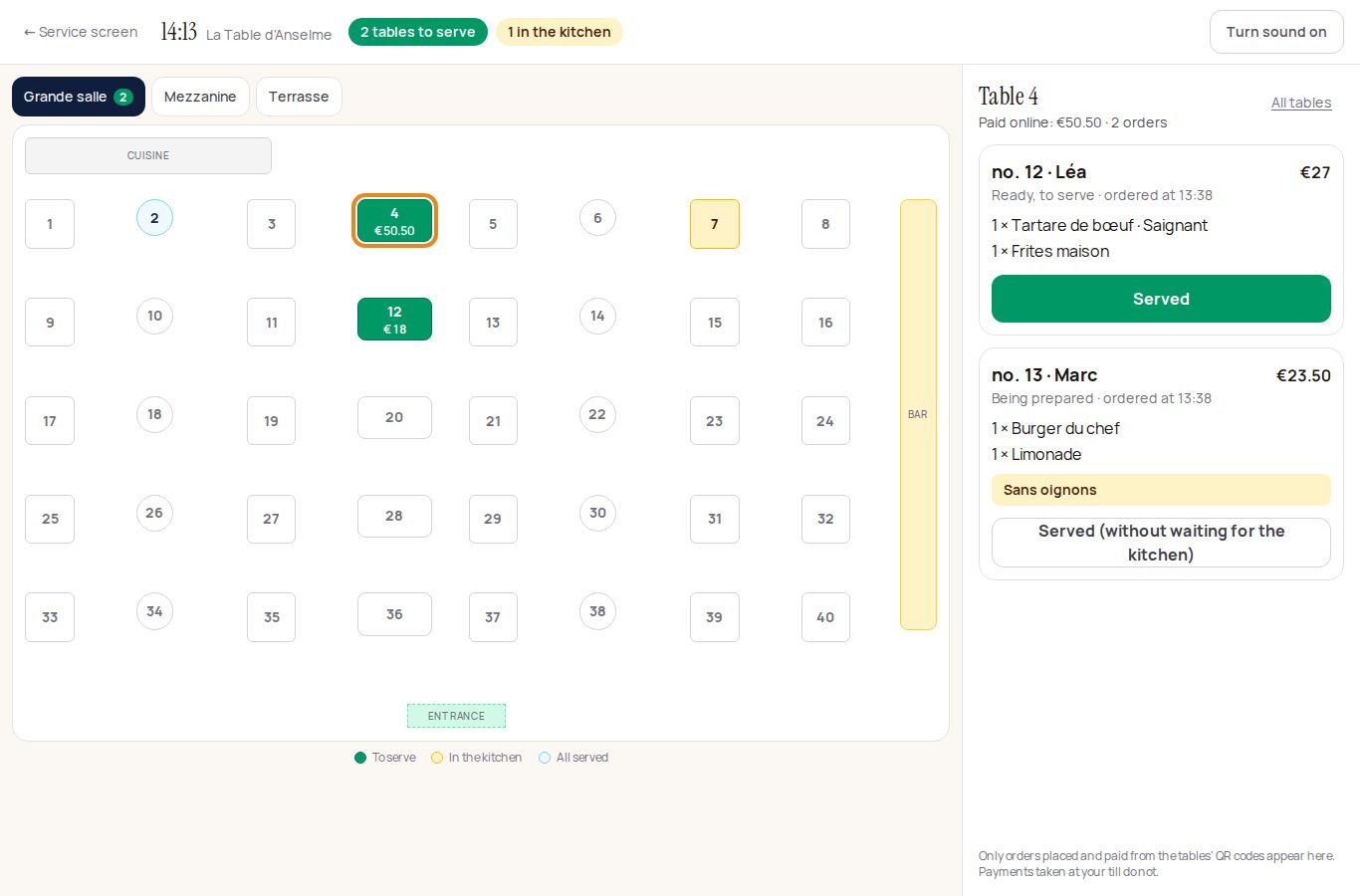
It shows orders placed from the tables' QR codes and orders taken by a waiter on this screen (see below). Orders keyed directly into your till do not appear.
Starter, main, dessert: serving in order
So that the kitchen doesn't send everything at once:
- In Settings, under Table ordering, assign each category of your menu: Starter, Main, Dessert or Straight away (drinks, coffees…).
- When paying, guests choose "In order" (selected by default) or "All at the same time". The question only appears if they picked at least two courses, for example a starter and a main.
In order:
- the kitchen first gets only the starters, plus anything that goes straight away. Its screen shows the rest in grey, "next", so it can plan ahead;
- once the starters are on the table, the waiter taps "Served": on the Floor screen, the table turns purple, "Starter served, main to send";
- when the table has finished, they tap "Send the mains". The mains reach the kitchen as a new ticket marked "Next course", with its own timer. Same again for desserts;
- with several orders at the same table, "Send the next course for the whole table" sends everyone's at once.
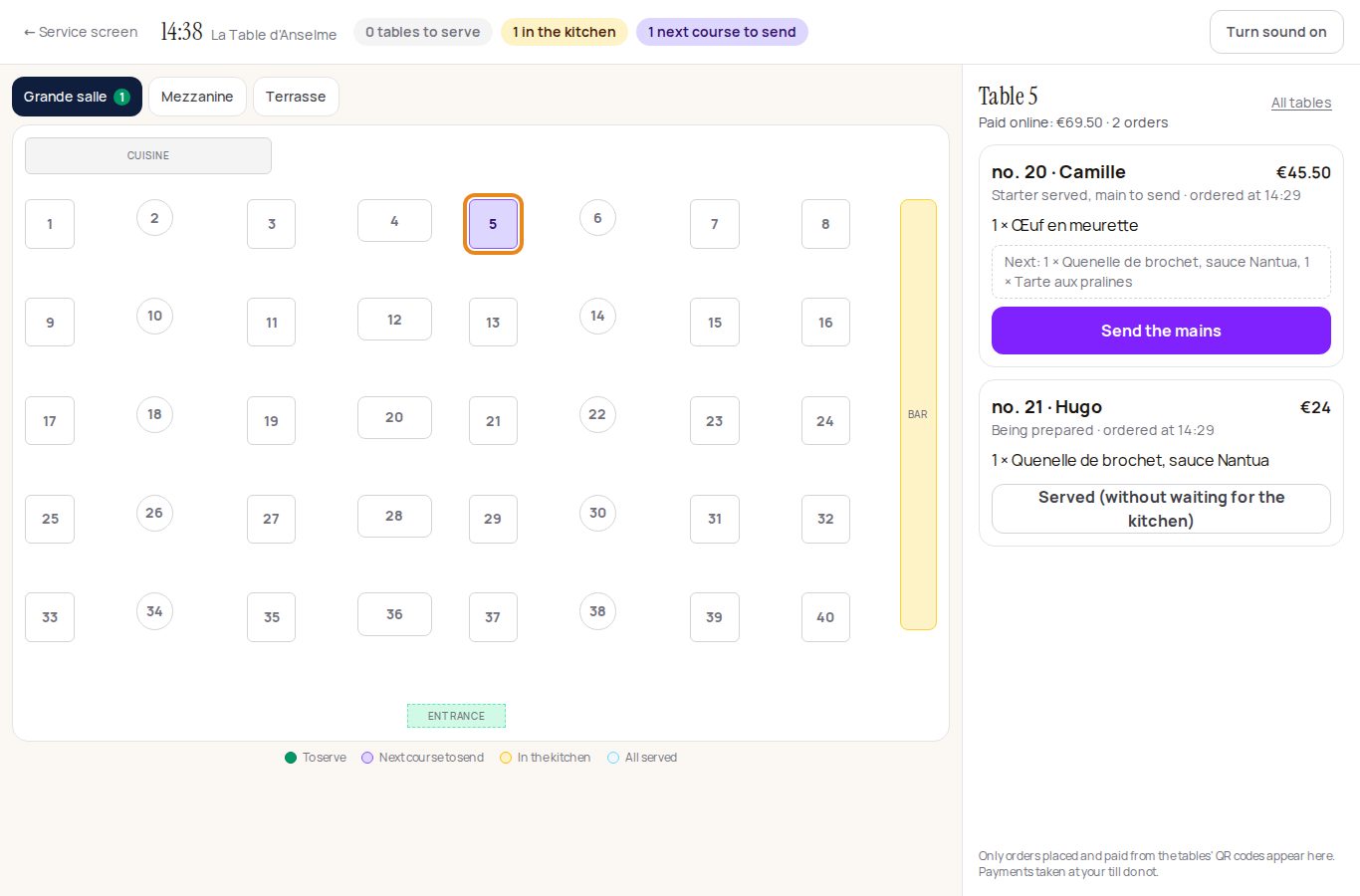
If nothing is assigned, everything goes at once, as before. With printers, each send prints its own slip.
Paying at the end, at the till
Choose how guests pay at the table, in Settings, under Table ordering:
- Online, when ordering: as before, the order goes to the kitchen once paid;
- At the end, at the till: guests order, then pay at the till as usual. No Stripe needed;
- Guest's choice: they choose when ordering, "Pay now, online" or "Pay at the end, at the till".
Without online payment, anyone can order with a photo of the QR code. That is why, by default, a member of staff first confirms orders to be paid at the till:
- the order shows up in red on the Floor screen, "To confirm", with a beep if sound is on;
- the waiter checks someone is really at the table and taps "Confirm: send to the kitchen". If nobody is there, "Decline": nothing goes to the kitchen;
- once it is paid, they tap "Paid at the till" on the order, or for the whole table. It is just a tick: the payment itself is recorded in your till, as usual.
Guests must be able to pay in cash: the "Guest's choice" or "At the end, at the till" mode lets them pay in cash at your till, and they see it written ("cash or card").
Why doesn't Klarr record the payment method or the amount collected? Software that records payments becomes till software, which must be certified in France (article 286 of the General Tax Code). Klarr stays an ordering tool: your certified till keeps the takings. If in doubt, ask your accountant.
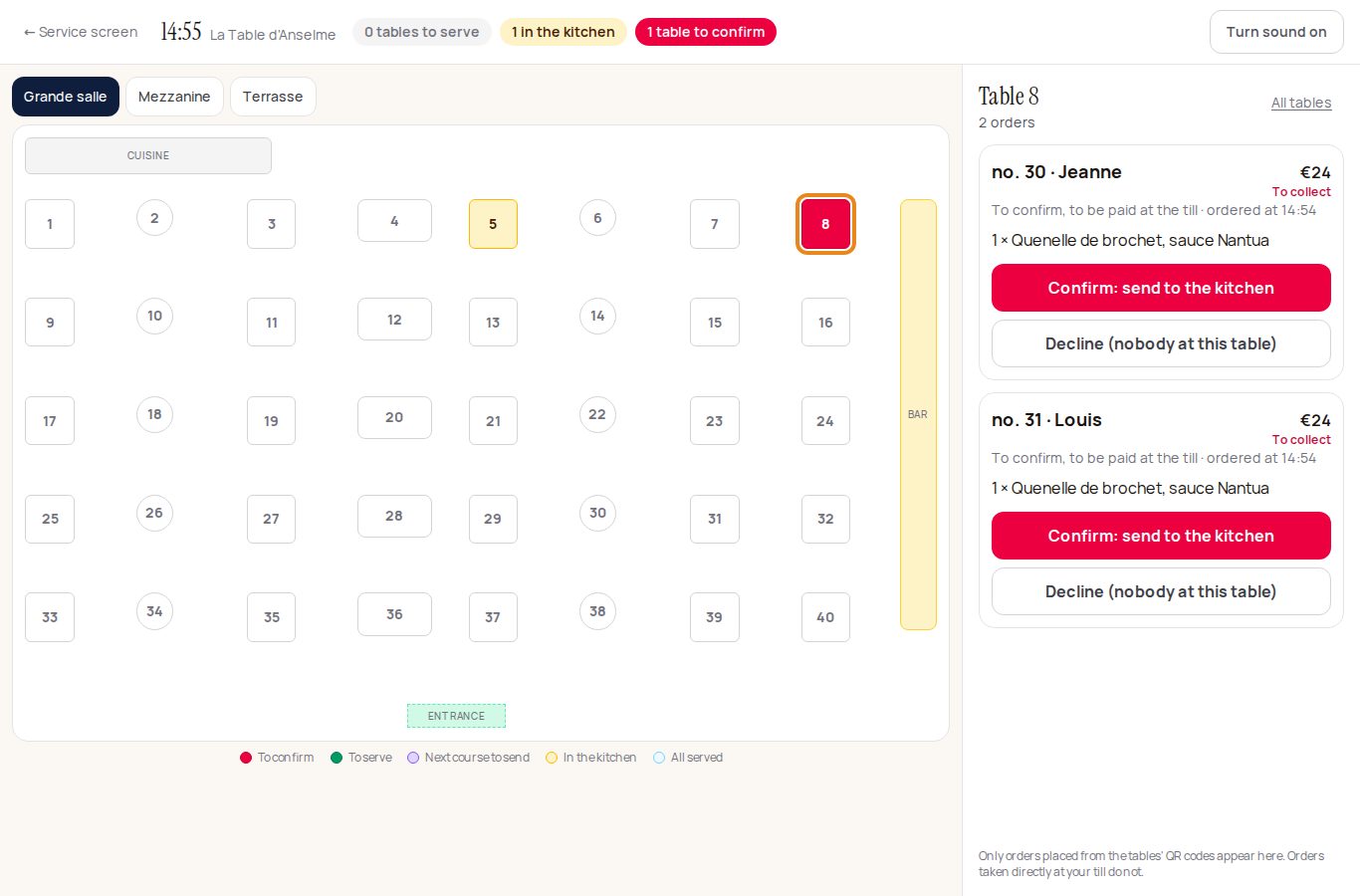
You can untick confirmation if you prefer: the order then goes straight to the kitchen.
Good to know: the order slip says "TO BE PAID AT THE TILL", and these orders are not counted in the online sales of the day (they go through your till). The guest's page says "To be paid at the end of your meal, at the till".
Taking the order for a guest
For a table without a phone, an elderly guest, a regular who orders out loud: the waiter takes the order themselves, on the Floor screen.
- Tap the table on the plan, then "+ Take the order".
- Pick the dishes from the menu, just as the guest would. If you like, note a first name or a marker ("the lady with the hat") and a note for the kitchen. If your menu has starters, mains and desserts, choose "In order" or "All at the same time".
- Tap "Send to the kitchen".
The order goes straight to the kitchen, with no confirmation, and to the printer if you have one. It is paid at the end, at the till, and ticked "Paid at the till", like the others. On the Floor screen and the orders screen it shows "Taken by" and the waiter's email. Anyone on the team can take an order, including the Service role.
The guest calls a waiter or asks for the bill
On the page they open with their table's QR code, the guest has two buttons: "Call a waiter" and "The bill, please". They stay on their tracking page once the order is placed.
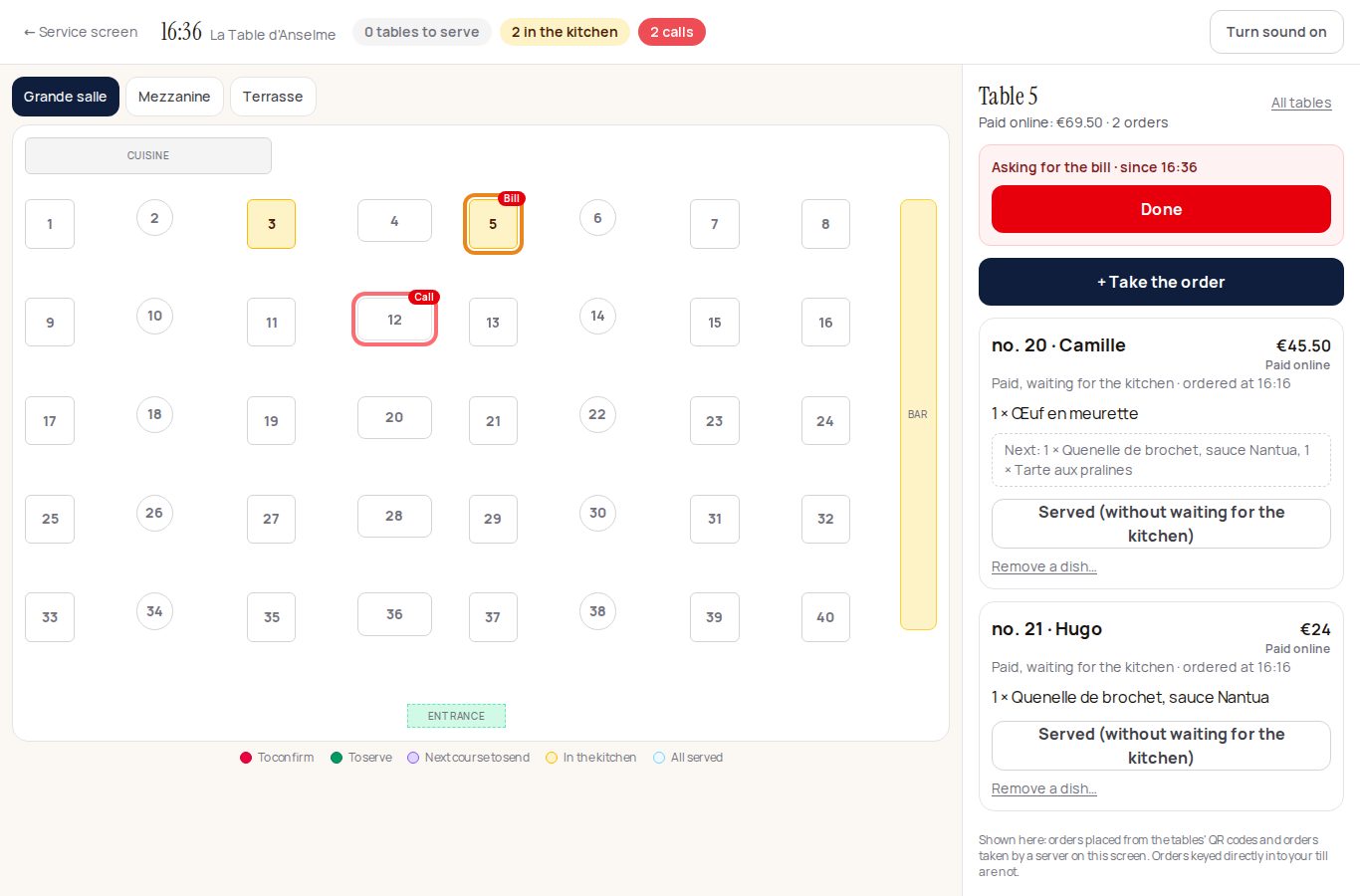
- The table flashes red on the Floor screen, with "Call" or "Bill", and the top of the screen counts the calls waiting. It beeps if sound is on, and the team gets a notification.
- The waiter goes to the table, taps it on the plan, then "Done": it stops flashing.
- A guest who taps several times does not create several calls: the same call is not repeated within ten minutes.
Removing a dish (mistake, sold out, sent back)
Under each order, "Remove a dish…": on the orders screen or on the Floor screen.
- Choose what to remove with the − and + buttons (1 beer out of 2, for example), or "Remove everything".
- Choose a reason: order mistake, dish sold out, dish sent back, goodwill gesture, other.
- Write one sentence explaining it (required), and add a photo if you like (the dish sent back, a receipt…).
- Tap "Remove these dishes".
What happens:
- paid online, the guest is refunded automatically to their card, from your Stripe. If the refund fails, the record shows it in red: do it in Stripe;
- to be paid at the till, the amount comes off the bill;
- the kitchen no longer sees the removed dish;
- nothing is erased: the dish stays crossed out on the order and appears in "Dishes removed today", with the reason, the sentence, the photo, who did it and when.
Managers and the owner can remove a dish. A waiter must first enter the manager code (set in Team). Without a manager code, only a manager can do it.
The VAT rate of each dish
In Menu, each dish's "Ordering" panel has two menus: VAT dine-in (10% by default) and VAT takeaway ("Same as dine-in", or another rate). Prices stay VAT-inclusive.
The rate is fixed on the order when the guest pays. The order slip shows "incl. VAT" per rate, and the orders screen gives today's online sales per rate, to enter in your till. Rates depend on what you sell: check them with your accountant.
Alipay, WeChat Pay, Apple Pay
Payment happens on Stripe's payment page, with your Stripe account. Your guests see the payment methods you have turned on in Stripe: cards, Apple Pay and Google Pay, and also Alipay and WeChat Pay, handy for Chinese guests.
To turn them on: in your Stripe dashboard, open the payment methods settings (the link is in Klarr's order settings) and turn on the ones you want. Stripe may ask for a few details before opening them, and sets the fees for each. Nothing to change in Klarr: they appear on their own at the next payment.
The guest's bill
In France, a restaurant hands over a bill from €25 incl. VAT, and below that if the guest asks. Klarr prepares it for every order:
- on the orders screen, "Guest's bill"; on the Floor screen, "Print the bill". It prints on your receipt printer (AirPrint), even after service;
- the guest finds it on their tracking page, "See my bill", to print or save as a PDF;
- it shows the name and address from your profile, the date and time, the table, each dish, the total incl. VAT, the VAT by rate and the payment method (paid online, or to be paid at the till).
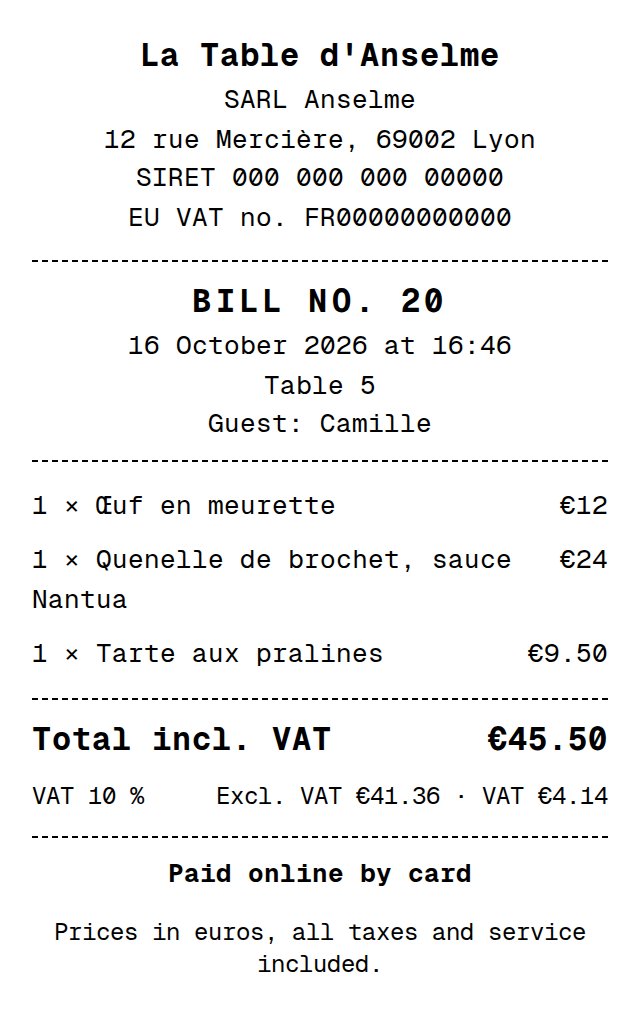
For business guests, add your company name, SIRET and VAT number in Order settings, under "On the guest's bill". The address comes from your profile.
The bill is not a till receipt: the sale is still entered in your till.
Till, cancellation, refund
- The slip says "Paid online — Stripe payment": enter the sale in your till with that payment method, as you do for delivery platforms.
- Cancelling an order emails the guest. The refund is made from your Stripe dashboard: Klarr gives you the link.
- A paid order can neither be edited nor deleted: it stays in your history.
- Too busy? A pause (30 minutes, 1 hour or until the next day) stops orders, then they resume on their own.