

Klarr Restaurant is Klarr's iPhone app. It puts your day's service, your booking requests and your payments in your pocket. It is free, and connected live to your account: everything you do in the app shows up on klarr.net straight away, and the other way round.
Good to know: for now, the app's screens are in French only. The buttons are described below with their English meaning, and the screenshots show the French screens.
1. Install the app
- On your iPhone, open the App Store (the blue icon with an “A”).
- Tap Search, at the bottom right, and type Klarr Restaurant.
- Tap Get, then confirm (with Face ID, your fingerprint or your Apple password).
Simpler: from your iPhone, tap the App Store badge at the top of this page.
2. Log in
Open the app. Enter the same email and password as on klarr.net, then tap Se connecter (Log in). Forgotten your password? Tap Mot de passe oublié ? (Forgot password?).
The app then asks whether it may send you notifications: tap Allow. That's what alerts you to every new request, even with your phone locked.
At the bottom of the screen, five tabs: Service, Expériences (Experiences), Bons & lots (Vouchers & prizes), Demandes (Requests) and Plus (More).
3. The day's service
The Service tab shows the day's bookings, service by service: the time, the name, the number of covers, the room and table, the occasion (birthday…) and your notes (allergy…). The arrows at the top change the day.
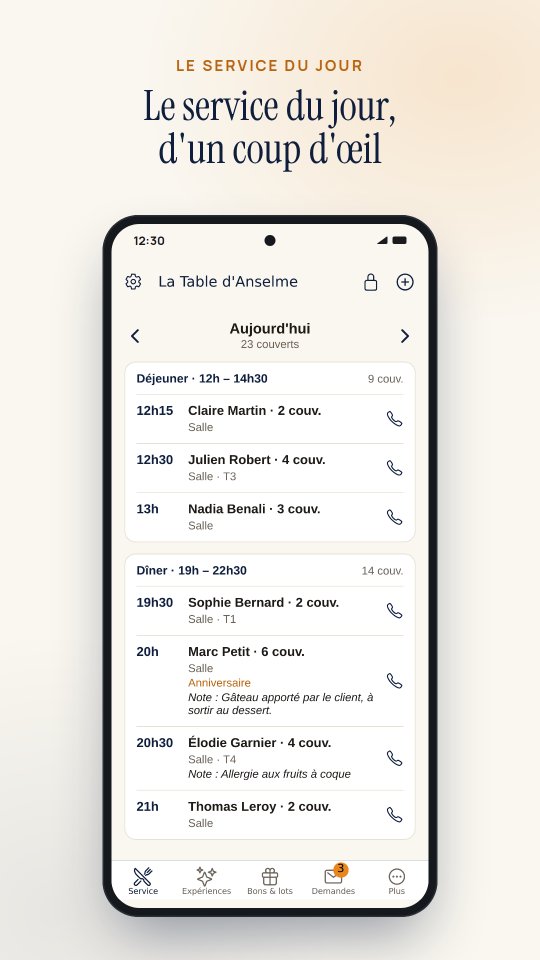
- The phone on the right calls the guest.
- The + at the top right adds a booking taken by phone, or a private hire.
- The padlock at the top blocks a day or a service (see below).
4. Accept or decline a request
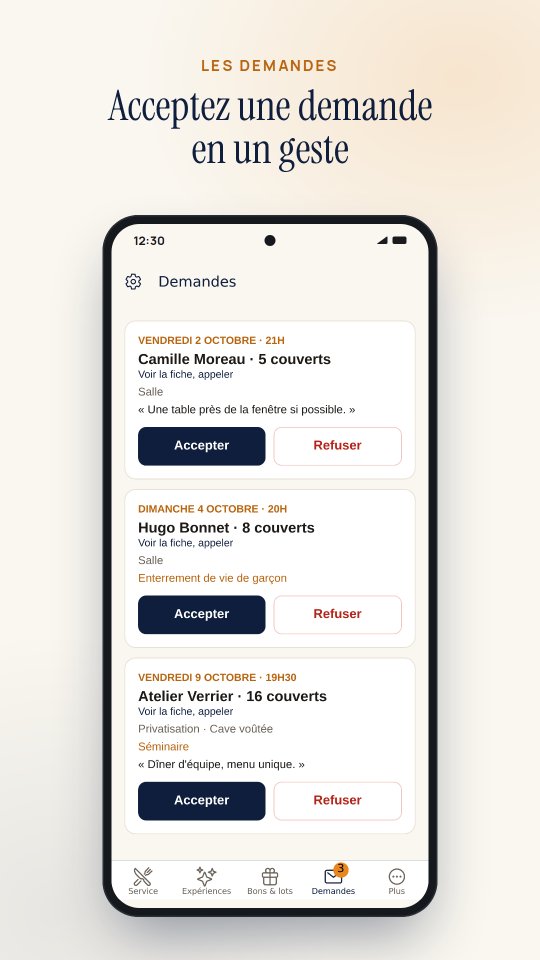
When a guest books on your page, you get a notification. The Demandes tab (with the number in orange) lists them: the date, the name, the number of covers, the room, the occasion and the guest's message. Tap Accepter (Accept) or Refuser (Decline).
5. A booking's details
Tap a booking to open its details: status, room, phone, email, occasion.
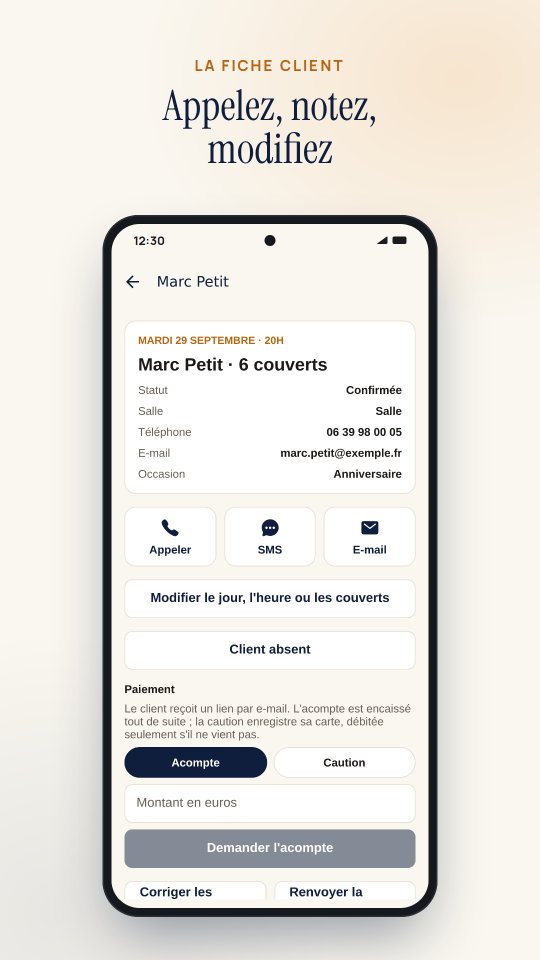
From here, you can:
- call the guest, send them an SMS or an email;
- change the day, the time or the number of covers, or seat them at a table;
- mark that they didn't come (Client absent, no-show), or cancel;
- add a note, correct their details, resend their confirmation.
6. Ask for a deposit or a card hold
Still on the booking, the Paiement (Payment) section:
- Choose Acompte (a deposit: the guest pays an amount up front) or Caution (a card hold: their card is saved, and charged only if they don't come).
- Enter the amount in euros.
- Tap Demander l'acompte or Demander la caution (Ask for the deposit / card hold). The guest receives a link by email to pay.
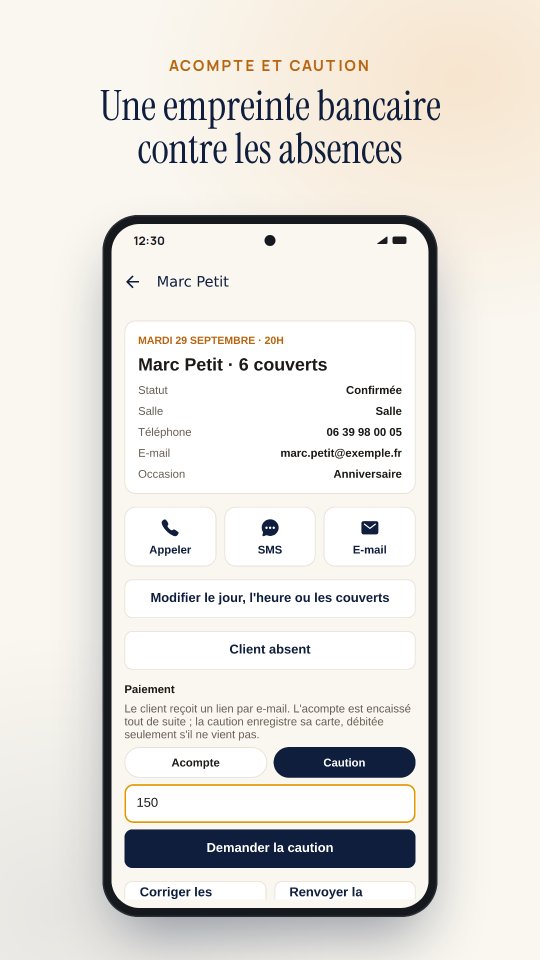
You then follow the payment, can remind the guest, record a deposit received on the spot, and after the service charge or release the card hold. You need to have connected Stripe: see Connecting Stripe.
7. Block an evening or a time slot
A private party, an unexpected closure? Tap the padlock (or Plus, then Bloquer). Choose the day with the arrows, write a reason if you like, then:
- Bloquer toute la journée (block the whole day);
- Bloquer tout le service (block the whole service, lunch or dinner);
- or tap a time to block just that slot.
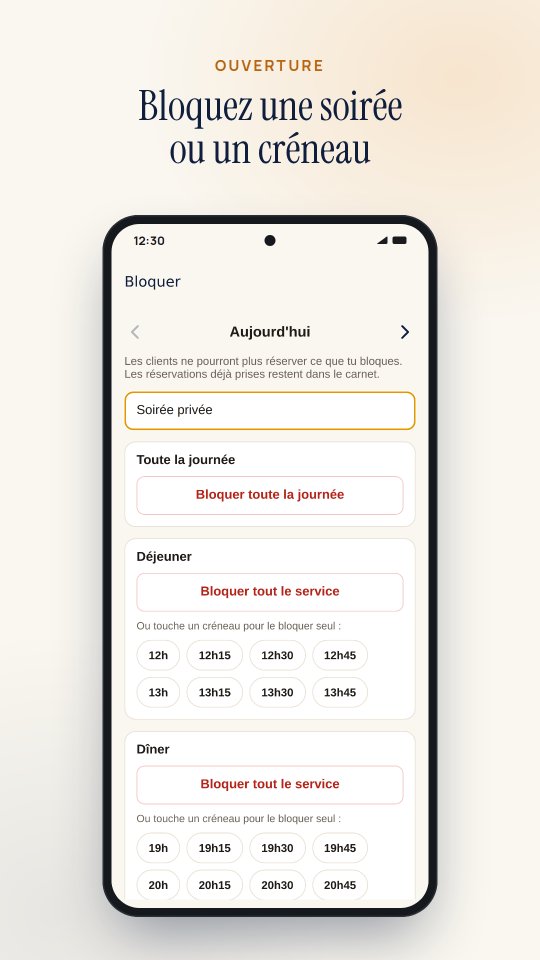
Guests can no longer book what you block. Bookings already taken stay in your book.
8. At the till: gift vouchers and prizes
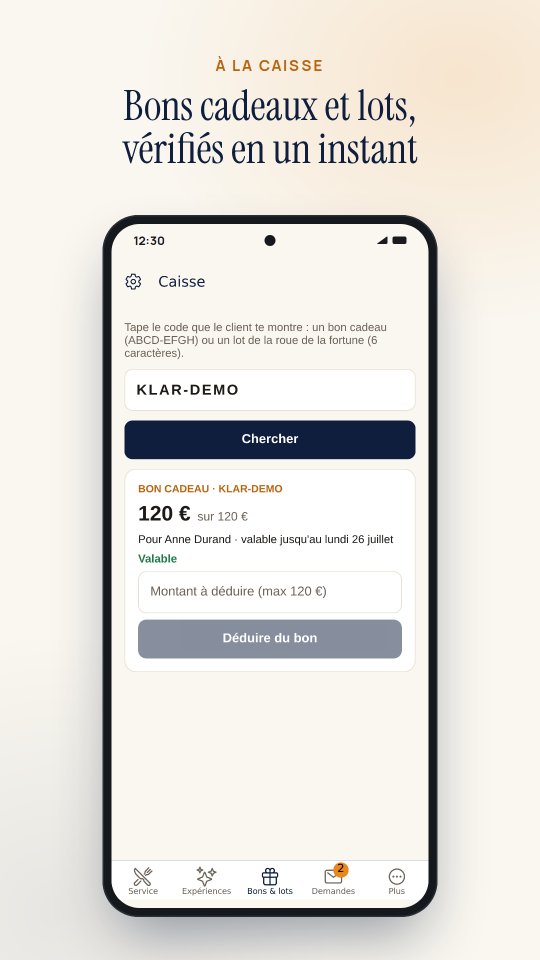
The Bons & lots tab is for the till. Type the code the guest shows you (a gift voucher, or a prize won on the wheel of fortune), tap Chercher (Search). Klarr tells you whether it's valid and how much is left. Enter the amount to deduct, then tap Déduire du bon (Deduct from the voucher).
9. Your Google reviews and QR codes
In the Plus tab:
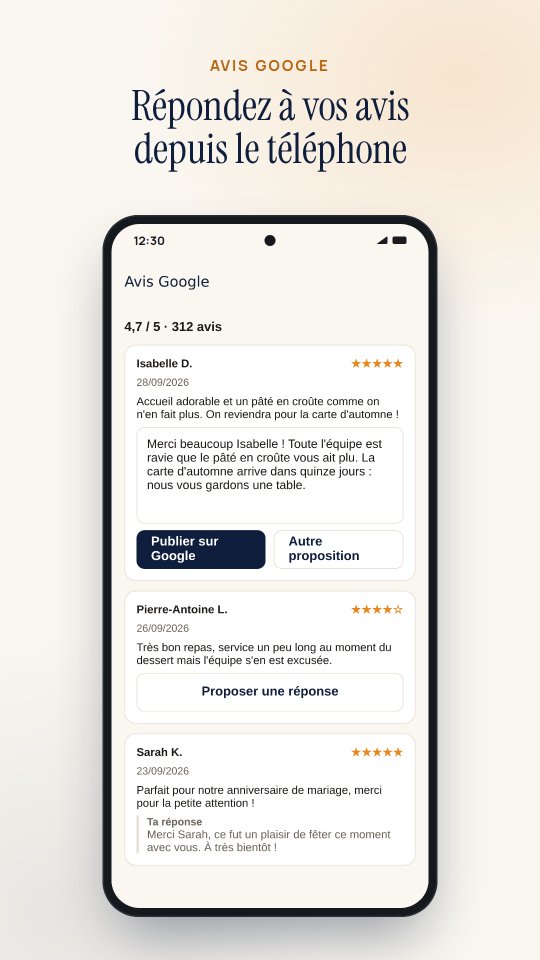
- Avis Google (Google reviews; only if you don't have the Visibility space, otherwise they're in its Avis tab): read your reviews. Under each one, the reply Klarr has prepared: tap Publier sur Google (Publish on Google), or Autre proposition (Another suggestion) to get a different one. For a review with no prepared reply, tap Proposer une réponse (Suggest a reply). At the top, three tabs: À répondre (To answer), Urgent (ratings of 3 stars or less and sensitive reviews) and Tous (All). If a customer edits their review after your reply, it comes back under « À répondre » with the Modifié après ta réponse (Edited after your reply) badge: tap Proposer une nouvelle réponse (Suggest a new reply), then Remplacer sur Google (Replace on Google).
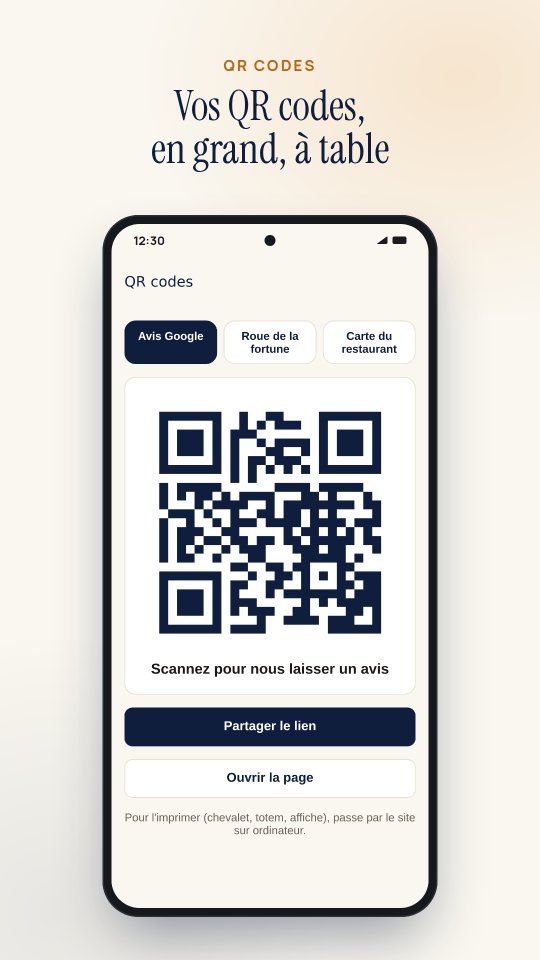
- QR codes: show the QR code for your Google reviews, your wheel of fortune or your menu full screen, and have the guest scan it at the table. Partager le lien (Share the link) sends it by message. To print it (table tent, poster), use the website on a computer.
- Fichier client (Guest list): find a guest, their visits and your notes.
- Retours clients (Guest feedback): what your guests wrote to you privately.
- Réglages (Settings): your account, your restaurants, logging out.
10. The floor plan (version 1.1)
From the Service tab, tap the plan icon at the top, or Floor plan under a service. Your rooms appear as on the website: each table, and who is at it. Blue: taken. White: free. Red: two parties at the same time, to fix. Tap a table to see who is there and open their booking.
- Seat by hand: tap a booking under "To seat", then a free table.
- Seat the service: Klarr suggests a table for each booking (the best fit first, large groups first, the guest's wishes next). Suggested tables show in orange on the plan. Untick what doesn't suit you, then tap Confirm. Nothing is saved before that.
11. Takeaway orders (version 1.1)
If you take takeaway orders, an Orders tab appears, with a badge for new ones. An order notification opens it directly.
- Start, Ready (the guest gets an email), Handed to the guest; Cancel emails the guest.
- Print slip opens the iPhone's AirPrint window: the ticket comes out on your printer, if it is on the same Wi-Fi.
- Scan a guest's QR code: aim at the QR code on their phone, and the order opens with Handed to the guest. Already handed over or cancelled, the app says so in red.
- Pause: 30 minutes, 1 hour or until tomorrow, then orders resume on their own.
12. During service (version 1.6)
- Front desk: in the Service tab, each booking of the day has its button: Arrivé (Arrived), then À table (Seated), then Parti (Left). On the booking record, Défaire le dernier geste (Undo the last step) fixes a mistake.
- Waitlist: under each service, who is waiting for a table, for how many, and where they stand. Tap the phone to call; Retirer (Remove) if they found a table elsewhere.
- Today's menu (Plus tab): the Épuisé aujourd'hui (Sold out today) switch removes a dish from online ordering and order-taking; it comes back on its own the next day. Manager only.
- Messages to the customer (on the booking record): pick a template, edit, Envoyer au client (Send to the customer). The email goes out in the restaurant's name; the reply lands in your inbox.
13. Taking an order in courses (version 1.6.1)
In Commandes (Orders), then Salle (Floor), tap a table, then Prendre la commande (Take the order).
- At the top, choose where the dishes you tap go: Direct (Now), Suite 1 (Course 1) or Suite 2 (Course 2).
- Tap the dishes one by one. A dish tapped twice counts twice; the − next to the dish removes one. A dish with cooking or options asks for them.
- Ticket (at the bottom) opens the order: a dish's badge changes its course (Now, then Course 1, then Course 2), − and + change quantities, Tout effacer (Clear all) starts over.
- Send: the "now" dishes go to the kitchen right away. The courses wait, and the kitchen sees them as a reminder.
- When the table has finished, open it and tap Réclamer la suite 1 (Call away course 1), then later Réclamer la suite 2. The kitchen gets a "RECLAME" slip. With several orders at the same table, Réclamer la suite de toute la table sends everyone's at once.
14. Fixing a table: removing dishes, freeing the table (version 1.6.2)
Manager only. A server can do it by typing the manager code.
- Retirer des plats (Remove dishes, under each order at a table): choose how many of each dish, the reason (order mistake, sold out, dish sent back, goodwill gesture, other) and one sentence. If everything is removed, the order is cancelled. If it was paid online, what you remove is refunded to the customer's card.
- Libérer la table (Free up the table, at the bottom of the table screen): the table shows as free on the plan again, even if an order is still there (customer left without paying, a test). The orders are not deleted: they stay in the history, and the kitchen keeps what hasn't been served. For a mistake, remove the dishes instead.
A table that has been served and paid at the till frees up on its own.
Plus → Contrôle (Control, manager only): over today, 7 or 30 days, who removed which dishes, how much, why, and who freed a table leaving something unpaid. Tap a staff member to see only them.
15. Posting from your phone (version 1.6.8)
In the Visibility space, the Post tab has two parts at the top: Social media and Google listing.
- Social media: choose the format (Post, Reel or Story), then the photo or video (Take, My photos, Record, My videos), the networks (Instagram, Facebook, TikTok, RedNote), the text, and when. Details in Reels, stories and videos.
- Google listing: the photo, then the post type: Update, Event or Offer. An event or an offer has a title, a start and an end; an offer can have a promo code and terms. Then choose the button of the post (Book, Order, Learn more, Call or None) and where it leads: your booking page, your ordering page, your menu, your website, or another address.
- When: Now, a shortcut, or Pick… to set the day and time yourself.
- My posts (at the top of the tab): what's scheduled, with Cancel, and everything posted in the last 30 days, with links to Instagram and Facebook.
When a new version of the app comes out, a window offers it when you open the app: Update takes you to the App Store.
What's done on the computer
Setting up your restaurant (opening hours, rooms, table plan, menu, online visibility) is done on klarr.net, from a computer. The app is for the day-to-day of service.
And Android?
The Klarr Restaurant app is also on Google Play, free, with the same features. On your Android phone, open the Play Store, search for Klarr Restaurant and tap Install, or tap the Google Play badge at the top of this page. You sign in with the same Klarr account.