Many Asian restaurants serve all-you-can-eat, but to order: guests do not help themselves at a buffet, they order by rounds from their table. Klarr handles those rounds: the number of rounds, the dish cap, the delay between two rounds, and the bill at the end.
It is included in the Bookings module. Table ordering must be open (Orders, then Settings) and your tables must be drawn on your floor plan.
Create your plans
In Dine-in & takeaway orders, then Settings, tap “All-you-can-eat: plans and rules”.
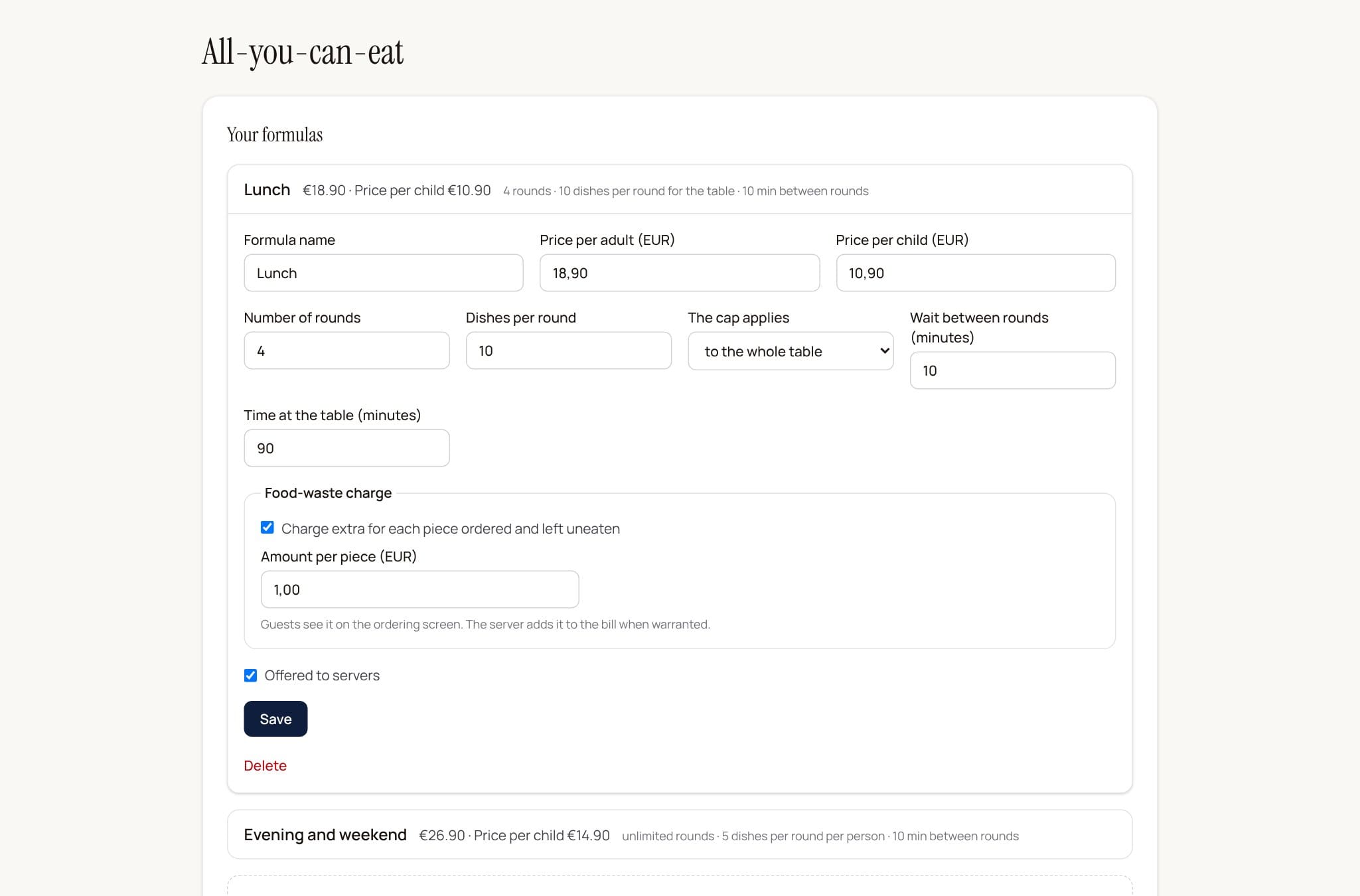
A plan is for example “Lunch”, “Evening” or “Weekend”. For each one:
- the price per adult, and the price per child if you have one (empty: a child pays the adult price);
- the number of rounds (empty: unlimited);
- the dishes per round, counted for the whole table or per person;
- the delay between two rounds, in minutes;
- the time at the table (empty: unlimited);
- the no-waste fee: a checkbox and an amount per piece.
You can create up to 8 plans. Untick “Offered to servers” to pause one without deleting it.
Say which dishes are included
On the same page, “Dishes included” lists your menu by category:
- tick the dishes guests can order freely (“Tick all” ticks a whole category);
- set a “Max per round” on the most expensive dishes: “2” means that dish twice per round;
- leave drinks and extras unticked: they stay paid, at menu price.
Tap “Save” at the bottom of the list.
Open a table
When guests arrive, on the Floor screen:
- tap the table;
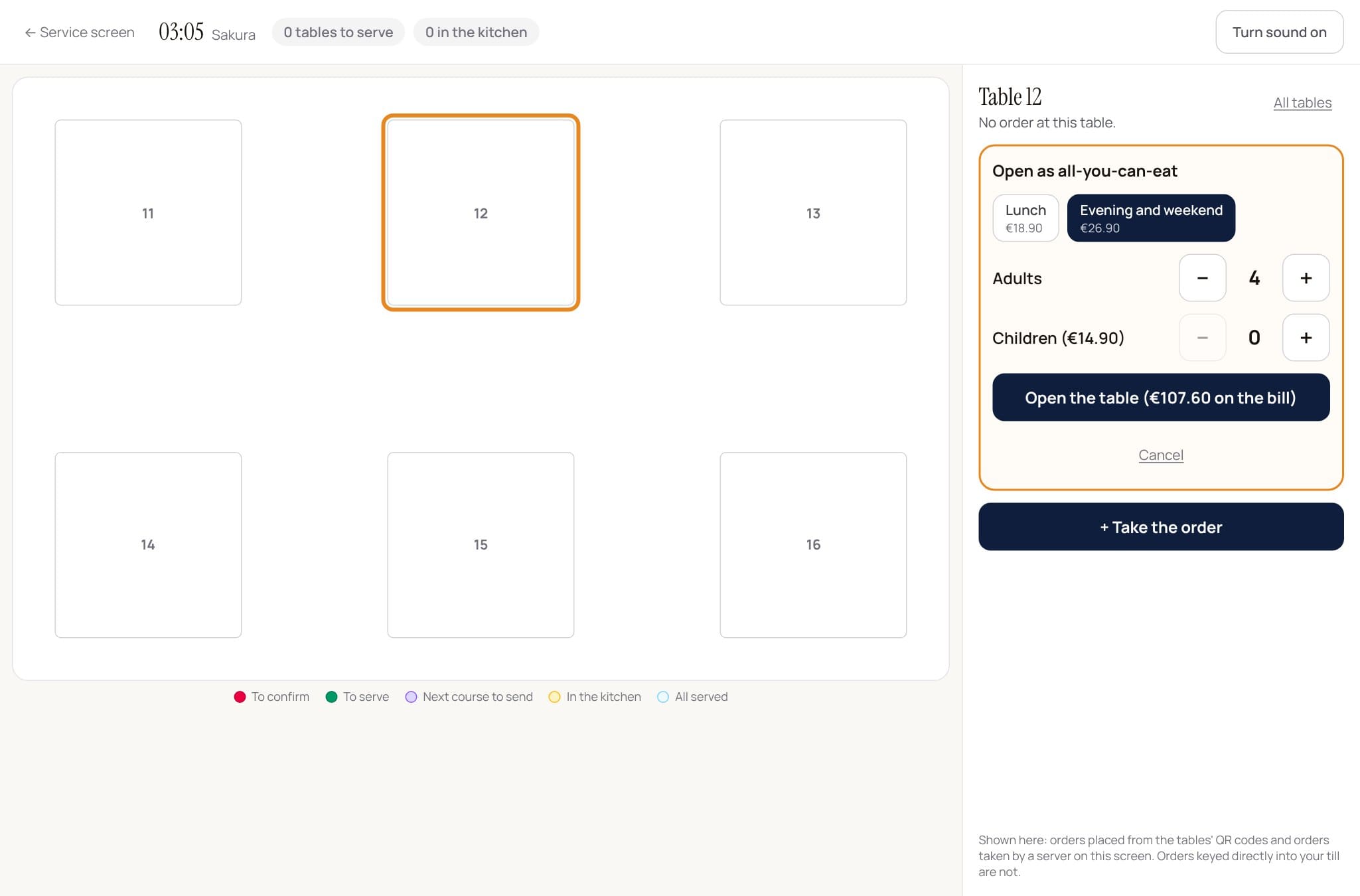
- tap “Open as all-you-can-eat”;
- pick the plan, then set adults and children with + and −;
- tap “Open the table”: the amount is written on the button.
The plan goes onto the table's bill straight away. It does not go to the kitchen.
Rules are frozen when the table is opened: if you change a plan mid-service, tables already seated keep theirs.
Wrong number of guests? The manager removes the extra line from the bill, as for a dish.
What the guest sees
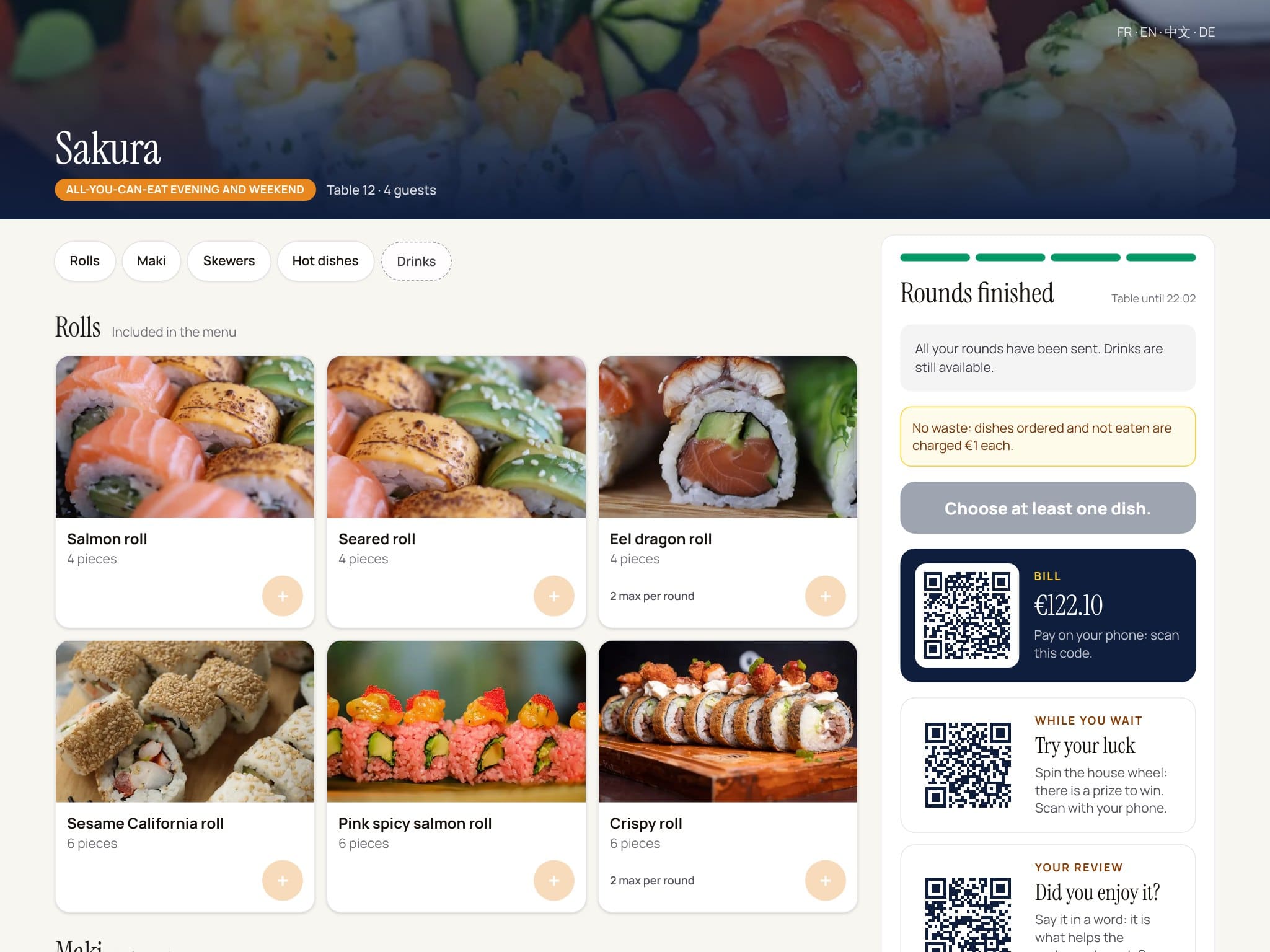
The guest scans their table's QR code (or uses the tablet, see below). Because the table is open as all-you-can-eat, they land on the rounds screen:
- the included dishes, by category, with a + button;
- a gauge: “7 / 10 dishes”, and what is left in the round;
- a dish's limit (“2 max per round”): its button greys out once reached;
- at the bottom, drinks and dishes outside the plan, with their price: they are added to the bill without using a round;
- the no-waste reminder, if you turned it on.
They tap “Send the round to the kitchen”. The countdown to the next round starts.
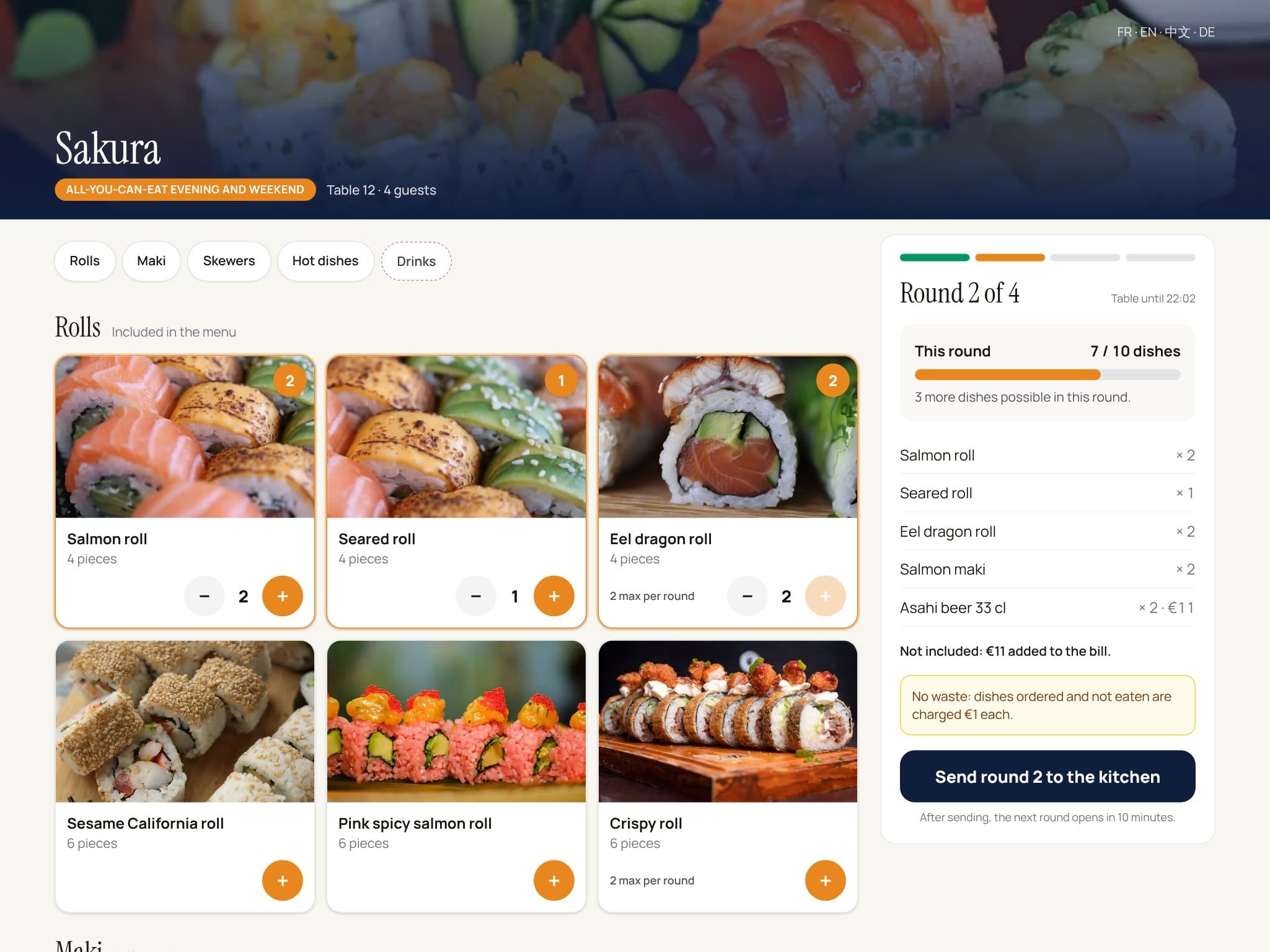
The screen is in French, English, Chinese and German, with your dish photos, your logo and your website's cover photo.
Everything is checked again on sending: number of rounds, delay, cap, sold-out dish. If two phones at the same table send at the same time, only one takes the round.
In the kitchen and on the floor
Each round arrives as a ticket on the kitchen screen, marked “Table 12 · round 2”, and prints on your receipt printer if you have one.
On the Floor screen, the table shows the plan, the guests, the opening time and the round reached. A round is worth zero (“Included in the plan”): only what is outside the plan is added to the bill.
A dish out of stock? The menu's “Sold out” button removes it from the guest's screen until the next day.
Between two rounds
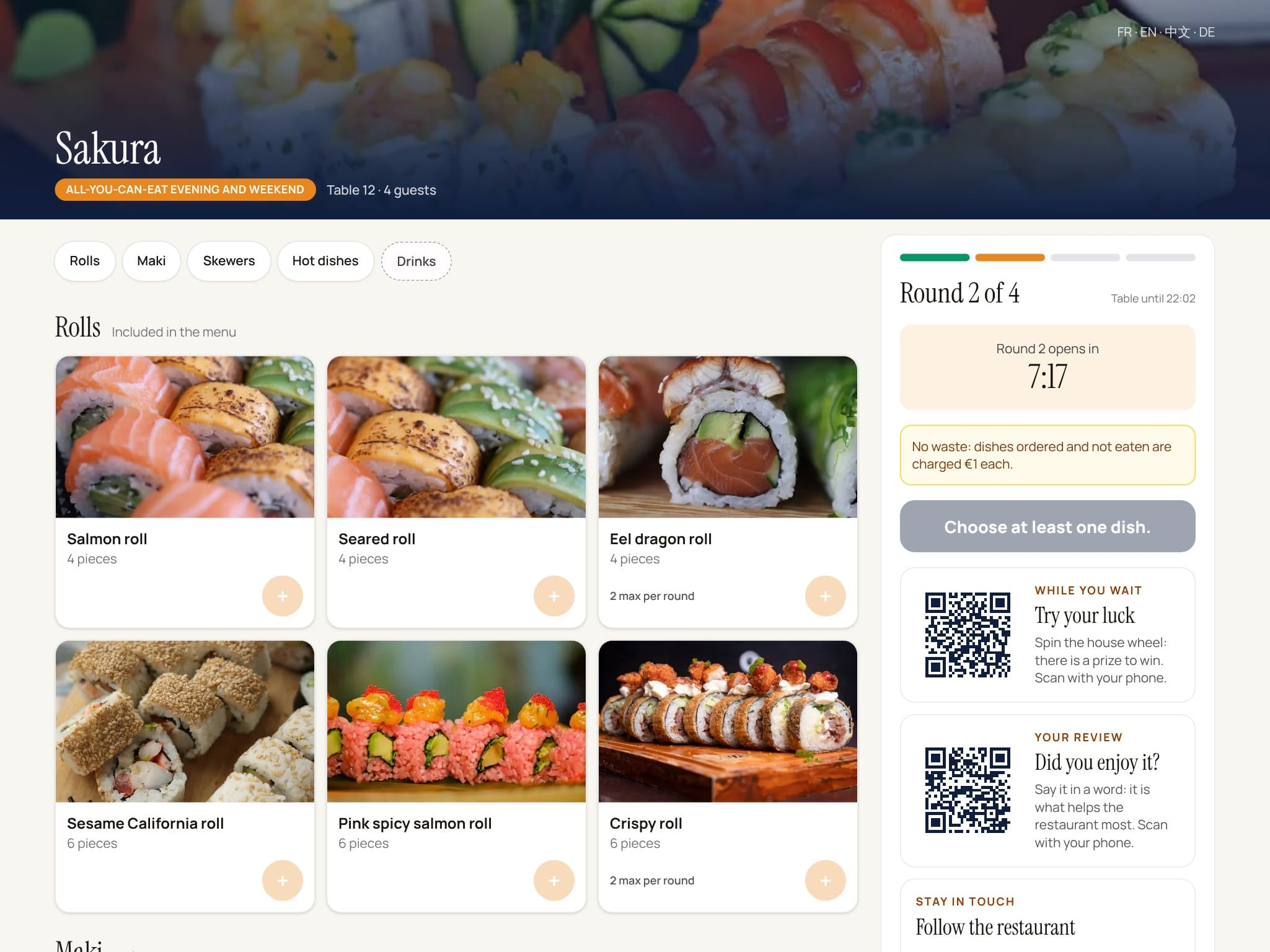
During the wait, the screen offers what you already have in Klarr:
- your prize wheel, if it is on;
- a review (“Did you enjoy it?”);
- your connected social accounts: Instagram, TikTok, Facebook.
On the tablet these are QR codes: the guest plays or writes on their own phone. On their phone, they are buttons.
The tablet at the table
You can put a tablet on each table. Any iPad or Android tablet with a recent browser will do.
Once, in the settings (All-you-can-eat, “The tablet at the table”): create a 4-digit tablet code and copy the address shown.
Once, on each tablet: open that address, enter the code, pick the table. The tablet then stays on that table.
During service:
- until the table is opened, the tablet shows “Welcome”;
- a waiter taps “Staff”, enters the code, picks the plan and the guests (or opens the table from the Floor screen: the tablet switches by itself);
- once the bill is collected, the tablet returns to “Welcome” by itself.
The tablet code is not the manager code: the whole floor team can know it. Five failed attempts lock it for fifteen minutes.
To stop a guest from leaving the screen, turn on “Guided Access” on iPad (Settings, Accessibility) or “App pinning” on Android. Klarr cannot do it for you: it is a tablet setting.
Paying the bill from the table
In the all-you-can-eat settings, tick “Let guests pay the bill on their phone”. Stripe must be connected; it is off by default.
The guest's screen then shows the total and a QR code. On their phone, they choose:
- the whole bill;
- their share: the bill divided by the number of guests;
- another amount.
They pay by card, Apple Pay or Google Pay, into your Stripe account, with no Klarr commission. Once everything is paid, the bill is settled and the table is freed.
If only a share is paid online, the Floor screen shows “Already paid online” and what is left to collect. The Klarr till deducts it automatically.
If a guest pays online a bill already collected at the till, the Floor screen shows “Online payment to refund” in red. Refund it in your Stripe account, then tap “Done”.
Closing
The session ends by itself once the bill is collected. To stop orders earlier (guests gone, a mistake), tap “Close all-you-can-eat” on the Floor screen or from the tablet: the bill remains to be collected.
What Klarr does not do
- Dishes outside the plan with a mandatory choice or several sizes (a beer in two sizes) do not appear on the guest's screen: the waiter takes them on the Floor screen.
- Included dishes are sent without options (no “no wasabi”).
- The bill is split by amount, not dish by dish.
- The mobile app till does not yet deduct a share paid online.
- Klarr does not sell tablets and charges nothing per tablet.